NextAgency Agency Management System Logo
  • Products
    • NextAgency Product Overivew
    • NextCommission Product Overivew
    • Security
  • Components
    • Agency Management
    • CRM
    • Marketing & Communication
    • Commission Tracking
    • NextMarket
  • Onboarding
  • Compare
  • Pricing
    • NextAgency Pricing
    • NextCommission Solo – Pricing
  • FAQ
  • Login
  • Products
    • NextAgency Product Overivew
    • NextCommission Product Overivew
    • Security
  • Components
    • Agency Management
    • CRM
    • Marketing & Communication
    • Commission Tracking
    • NextMarket
  • Onboarding
  • Compare
  • Pricing
    • NextAgency Pricing
    • NextCommission Solo – Pricing
  • FAQ
  • Login
Start Free Trial
Get Demo
  1. Take 44 / NextAgency
  2. Using NextAgency Articles
  3. Sub-Agents

Sub-Agents

Follow New articles New articles and comments
  • NextCommission: Advanced Split Configuration — Rate Types, Filters, and Caps
  • NextCommission: Assigning Split Commission Schedules to Multiple Cases
  • NextCommission: Auto-Applying Sub-Agent Splits
  • NextCommission: Building a Sub-Agent Hierarchy
  • NextCommission: Commission Split Inheritance for Group Cases
  • NextCommission: Managing a Sub-Agent's Assigned Splits
  • NextCommission: Sharing Commission Statements with External Users

Sub-Agents

Follow New articles New articles and comments
  • Overview

    When you assign a commission split to a sub-agent or business manager, you configure one or more split periods. Each split period defines how much the recipient earns, which commissions it applies to, and optionally a maximum they can earn. This article covers every option available when setting up or editing a split period.


    Commission Rate Types

    Rate Type How It Works Best For
    Percentage Allocates a percentage (0–100) of the commission amount. All percentage splits for the same coverage type and dates combined cannot exceed 100%. Standard sub-agent arrangements
    Per Employee Per Month Allocates a flat dollar amount multiplied by the number of employees on the commission record. Requires employee count on the imported commission. Group cases paid on a per-head basis
    Flat Amount Allocates a fixed dollar amount regardless of the commission total. Fixed-fee arrangements, referral fees, guaranteed minimums

    Filtering Which Commissions a Split Applies To

    Product Type

    Select one or more product types (Medical, Dental, Vision, Life, etc.). Click Select All to include every product type. New types can be added in Agency Settings.

    Carrier

    Optionally restrict the split to specific carriers. Leave blank for all carriers.

    Compensation Type

    Choose which compensation types this split covers — Commission (default), Override, Bonus, and/or Fees. Multiple types can be selected.

    Benefit Effective Date Range

    Restricts this split to commissions tied to benefits whose effective date falls within a specific window. Leave blank to apply to all benefits regardless of effective date.

    Split Start Date and End Date

    Split Start Date is required. End date is optional — if left blank, the system defaults to 12/31/9999 (no expiry).


    Setting a Split Cap

    The Split Cap sets a maximum dollar amount the recipient can receive within a given period.

    Applied For How It Resets
    Per Premium Payment Applies independently per commission record. Never accumulates across payments.
    Per Calendar Month Resets on the 1st of each month.
    Per Calendar Year Resets on January 1st.
    Per Plan Year Resets based on the benefit's effective and renewal dates.
    Lifetime Never resets — tracks all splits ever generated by this period.

    Tip: Leave Split Cap blank if there is no maximum.


    Comment Field

    Use Comment for internal notes — contract reference numbers, reasons for specific date ranges, etc.


    Validation Rules

    • Overlapping dates: A new period overlapping an existing one for the same sub-agent, coverage type, and carrier is rejected with a link to the affected case.
    • Percentage cap: Combined percentage splits for the same coverage type, carrier, and compensation type cannot exceed 100%.
    • Duplicates: An exact duplicate (same effective date, end date, coverage type, and compensations) will be rejected.

    Need more help? Please contact our support team.

  • Do you use the same commission split over-and-over? Do you need to apply this common commission schedule to multiple cases? You could do it one client at a time. Yawn. It's a lot faster and easier to apply a commission schedule to multiple cases at once. Here's how:

    Creating a Commission Schedule

    1. In the navigation bar, click on Sub-Agents.
    2. Click on the Schedules tab.
    3. In the upper-right corner of the Schedules page, click on Add Schedule.

      mceclip0.png


    4. In the Add New Schedule window that pops up, give your commission schedule a descriptive name and fill in the following data.


    mceclip1.png


    • Coverage Type: Select the type of the coverage for your schedule.
    • Commission Rate Type: Select one of the three options - percentage, per employee per month, or flat amount. For example, if you select Percentage and enter 50 in the Commission Split field, it will mean that this sub-agent is receiving 50% of the commission on this case.
    • Commission Split: Enter the size of the commission.
    • Compensation: Select the compensation type(s) for your schedule.
    • Comment: Add Comments to the schedule.

     5. When ready, click Add.


    Assigning the Commission Schedule

    To add the commission schedule to multiple cases at once, select the required cases in the table on the homepage, and then click Actions > Assign Sub-Agent above the table.

    NextBroker_SplitCommissionsSchedule_03.png


    In the Manage Split Settings window that pops up, select the sub-agent and choose the schedule in the Schedule field. The system will automatically fill in the fields related to this schedule. All you have to do is select the effective date. Please note that we only allocate commissions to sub-agents that are received. So if you set the effective date of the schedule to a date before the first case you are working on, it will not mess up the splits with the cases that have a later effective date. When ready, click Save.

    mceclip2.png


    Need more help? Please contact our support team.

  • Who this is for: agencies that pay sub-agents and receive carrier statements that list the writing sub-agent on each row, and want those sub-agents' splits added to cases automatically instead of setting up each case's split by hand.

    With Auto-Apply, a sub-agent's split schedule becomes a standing rule. When you import a commission statement and a row names that sub-agent, NextAgency adds their split to the row's case for you, using the split periods on the schedule.

    Prefer to watch? See the Auto-Applying Sub-Agent Splits video.

    Setting it up takes three steps:

    Step Where What
    1 Sub-agent's Schedules tab Turn on Auto-Apply Split on a schedule and give it an effective date
    2 Sub-agent's Licenses tab Add the sub-agent's National Producer Number (NPN)
    3 Carrier's commission import Map the Sub-Agent Name and Sub-Agent NPN columns

    Step 1: Turn on Auto-Apply on a schedule

    Auto-Apply lives on a sub-agent's own split schedules, so it is set per sub-agent. You can turn it on when you add a new schedule or by editing one the sub-agent already has.

    1. Open the sub-agent and go to their Schedules tab.
    2. Click Add Schedule, or open the Actions menu on an existing schedule and choose Edit.
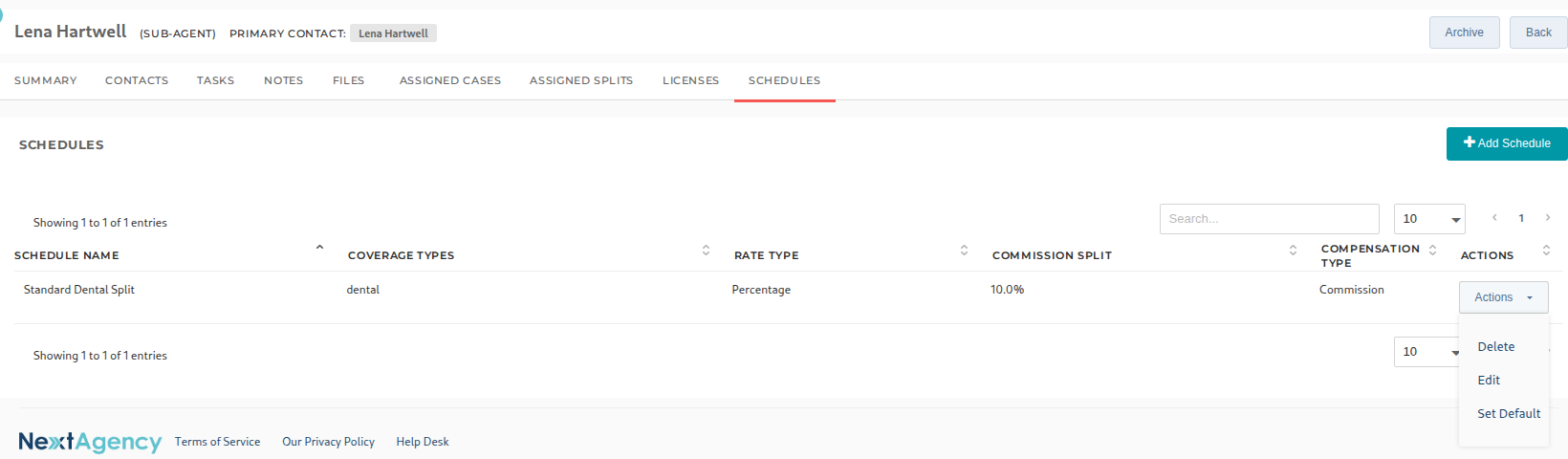
    The Actions menu on a sub-agent's Schedules tab

    1. Check Auto-Apply Split. Two date fields appear:
    2. Effective Date (required): the first date the rule applies.
    3. End Date (optional): the last date the rule applies. Leave it blank to keep the rule running until you end it.
    4. Check the Split Periods below. They decide what gets applied: the product type, carrier (leave it blank for any carrier), commission rate, compensation type and split cap.
    5. Click Update (or Add for a new schedule).
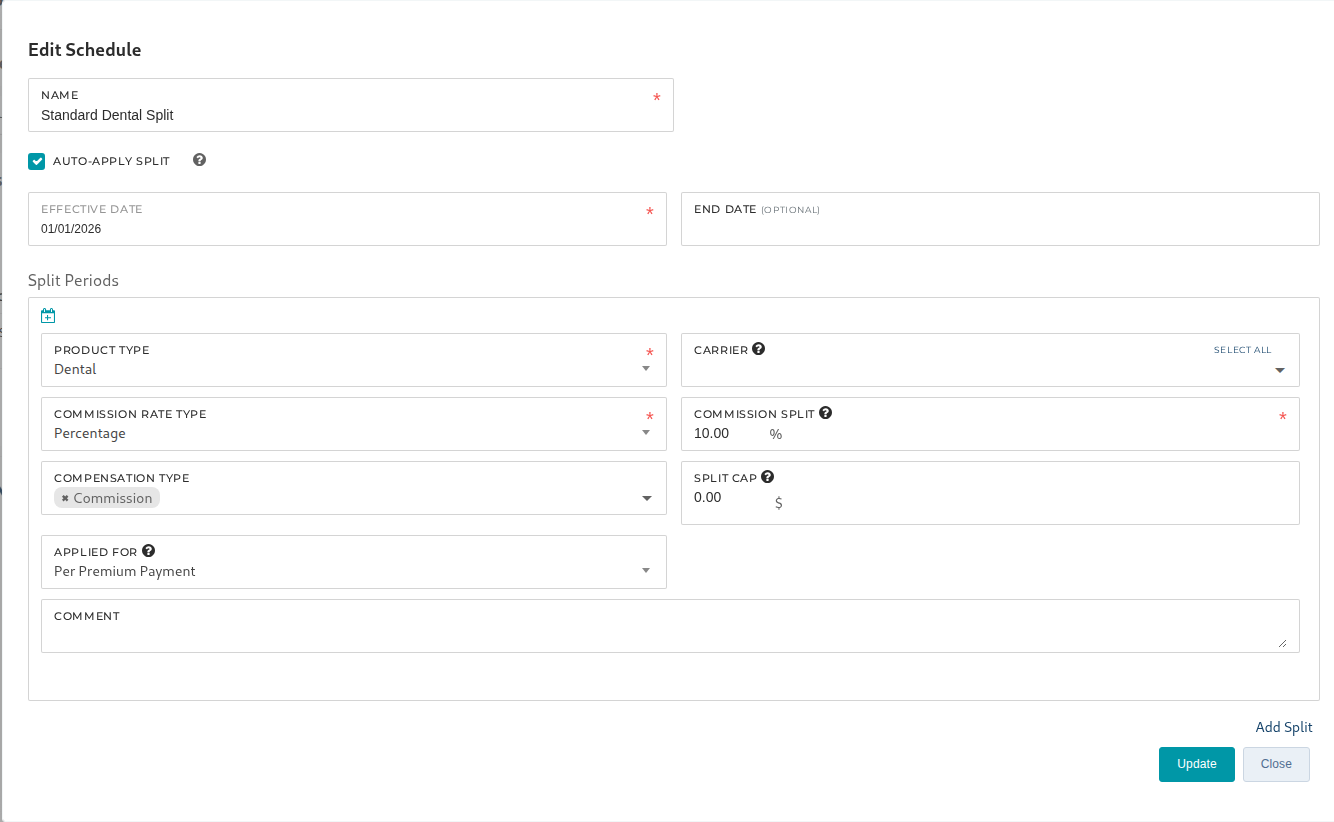
    Auto-Apply Split checked, with an Effective Date and the schedule's split period

    The dates are checked against each commission row's Paid to Date. A row paid before the effective date, or after the end date, is left alone.

    A sub-agent can have more than one Auto-Apply schedule, for example one that ends when their rate changes and a new one that starts the next day, as long as the date ranges don't overlap. If they do, NextAgency won't save the schedule and tells you an overlapping Auto-Apply schedule already exists.


    Step 2: Add the sub-agent's NPN

    1. On the same sub-agent, go to the Licenses tab.
    2. Click Add NPN (it reads Edit NPN once a number is saved).
    3. Enter the sub-agent's National Producer Number and click Save. If you don't have it, the Look up an NPN link opens the NIPR lookup page.
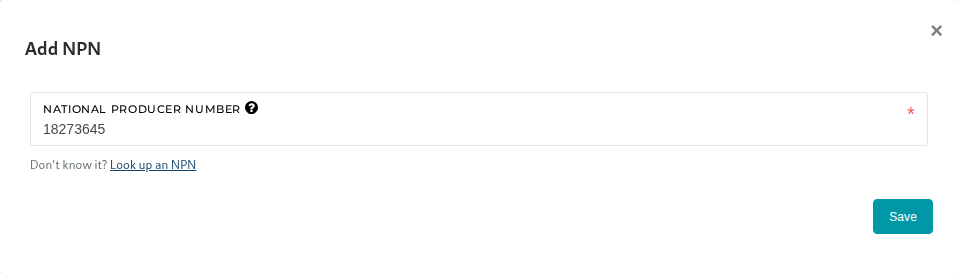
    The Add NPN window on the Licenses tab, with the Look up an NPN link

    The number shows at the top of the tab as National Producer Number.

    The saved National Producer Number on the sub-agent's Licenses tab

    The NPN is optional, but it is the surest match. When a statement row includes an NPN, the split is only applied if it matches the number saved here, which keeps two sub-agents with the same name apart.


    Step 3: Map the sub-agent columns on your commission import

    Import the carrier's statement the way you normally do: from the carrier's Commission Statements page, click Import Statement and upload the file.
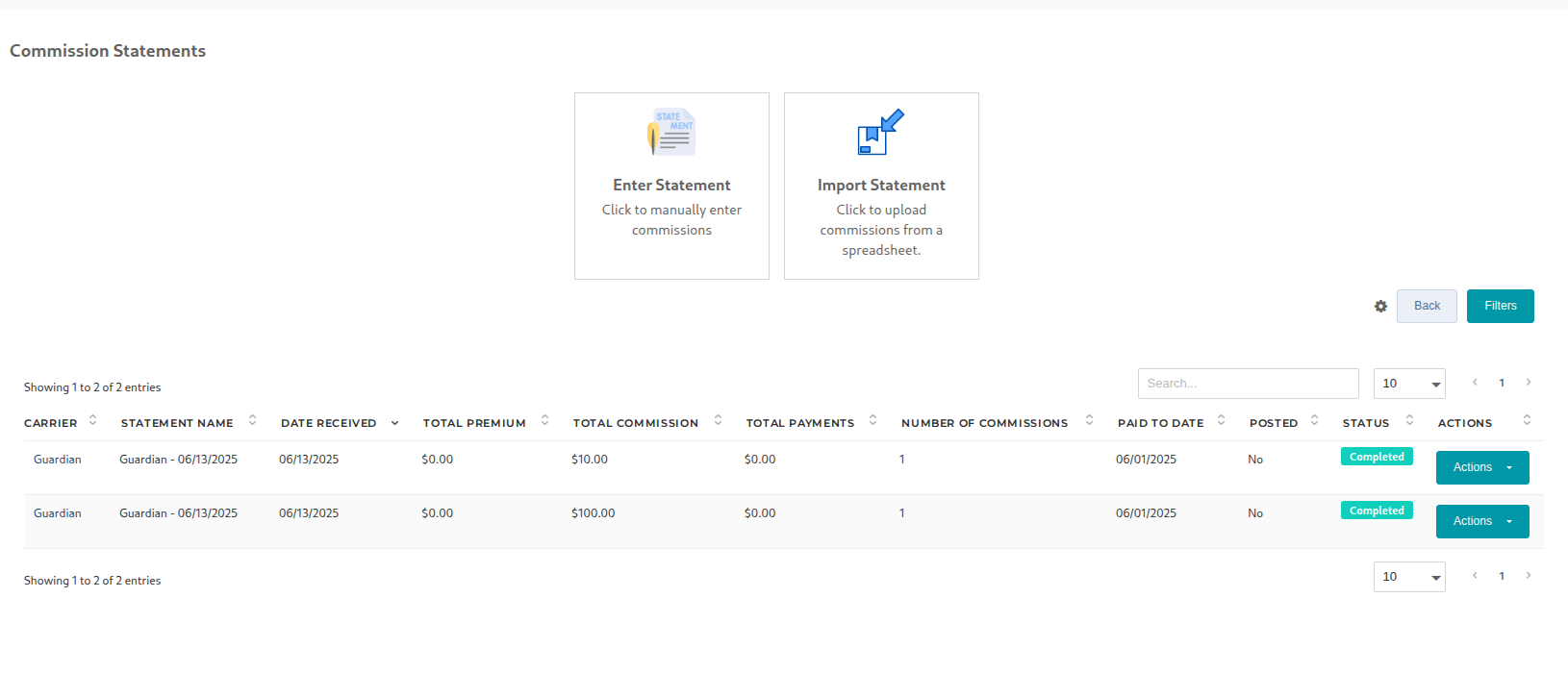
    Import Statement on the carrier's Commission Statements page

    On the Map Headers step, map the statement's sub-agent columns:

    System header What to map to it Required?
    Sub-Agent Name The column with the writing sub-agent's name. Either order works: Lena Hartwell or Hartwell, Lena. Needed for Auto-Apply
    Sub-Agent NPN The column with the sub-agent's National Producer Number Optional

    If your file's headers are already named Sub-Agent Name and Sub-Agent NPN, they lock into place on their own.
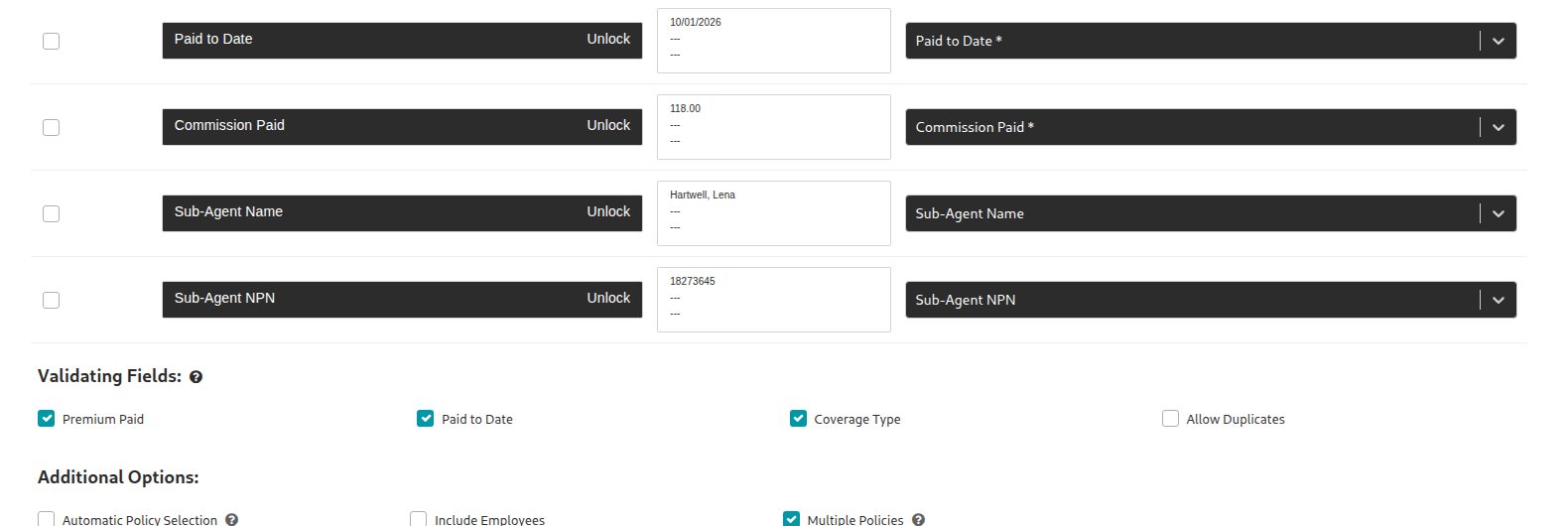
    Sub-Agent Name and Sub-Agent NPN mapped on the Map Headers step

    Finish the import as usual: click Continue, give the import a name and click Import.
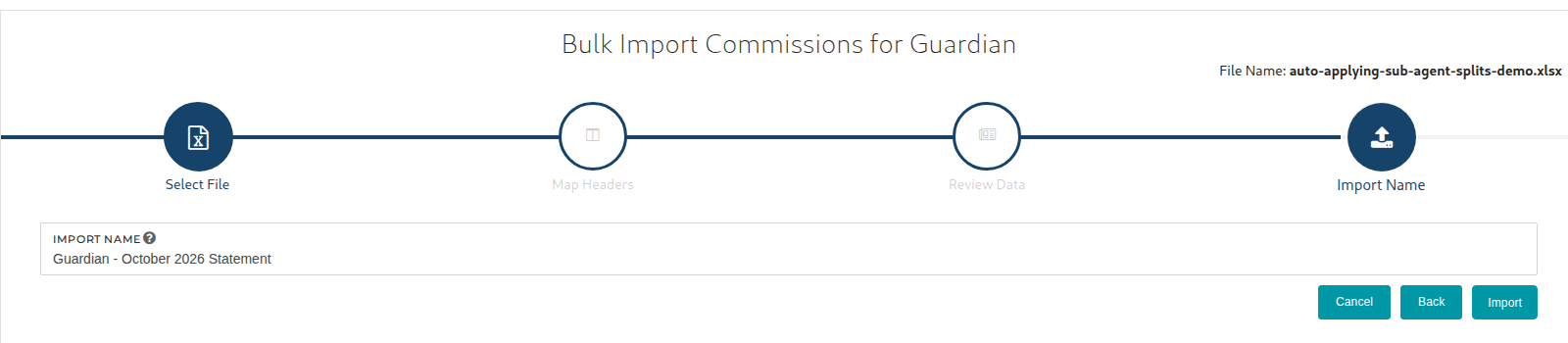
    Naming the import


    Checking the result

    The import runs in the background. Once it finishes, open the case's Commissions tab and click Split. The sub-agent's split is listed with an Auto-Applied label.

    The sub-agent's split on the case's Split tab, labeled Auto-Applied

    The split also appears on the sub-agent's Assigned Splits tab like any other split, where you can terminate, update, replace or remove it. See Managing a Sub-Agent's Assigned Splits.


    How a row is matched

    For each imported commission row that has a Sub-Agent Name, NextAgency:

    1. Looks only at sub-agents who have at least one Auto-Apply schedule.
    2. Matches the name against each sub-agent's first and last name (with or without a middle name), and also against a vendor or sub-agency name. Capitalization and extra spaces don't matter, and Last, First is read as First Last.
    3. If the row has a Sub-Agent NPN, keeps only the sub-agents whose saved NPN matches it.
    4. Uses the sub-agent's Auto-Apply schedule that is active on the row's Paid to Date.
    5. Applies the schedule's split periods that fit the row: the same product type, the same compensation type, and the row's carrier (or any carrier, if the split period has none selected).

    If the sub-agent already has a split on that commission, nothing is added twice.


    Common questions

    Why wasn't a split applied? Check these in order: the sub-agent has a schedule with Auto-Apply Split checked; the row's Paid to Date falls between that schedule's Effective Date and End Date; one of the schedule's split periods matches the row's product type, compensation type and carrier; the name in the file matches the sub-agent's name in NextAgency; and, if the file has an NPN, it matches the NPN on the sub-agent's Licenses tab.

    Two of my sub-agents have the same name. What happens? If more than one sub-agent with an Auto-Apply schedule matches the name on a row, and there's no NPN to tell them apart, NextAgency skips the split for that row rather than guess. Add each sub-agent's NPN on their Licenses tab and include the NPN column on your statement, or adjust the names so they're unique.

    Does an auto-applied split pay on the case's other commissions too? No. An auto-applied split is only used for imported rows that name the sub-agent. Commission rows on the same case that don't name them aren't split to them. If a sub-agent should be paid on everything for a case, assign their split on the case directly instead.

    Does the NPN have to be in my file? No. Without it, matching is by name alone. Including it is the safest way to make sure the right sub-agent is matched.

    What if a sub-agent leaves? Give their Auto-Apply schedule an End Date so future imports stop adding them. If someone is taking over their cases, Replace Sub-Agent on the Assigned Splits tab can end the departing sub-agent's Auto-Apply rules and copy them to the replacement in the same step.


    Please contact our support team if you have any questions.

  • A sub-agent hierarchy is a saved tree that mirrors how your sub-agents report to each other. Each tier holds one sub-agent and the split they earn. When you assign the hierarchy to a case, NextAgency adds a commission split for every tier from the sub-agent you pick up to the top of their chain, so you don't have to enter each upline's split by hand.

    Prefer to watch? See the Building a Sub-Agent Hierarchy video.


    Build a hierarchy

    1. Go to Sub-Agents and open the Hierarchies tab. The list shows each hierarchy's name, how many levels it has, and its agents.
    2. Click New Hierarchy.

    The Hierarchies tab on the Sub-Agents page, with the New Hierarchy button

    1. In Hierarchy Name, give it a name your team will recognize, such as the name of the agent at the top of the chain.
    2. The builder starts you with one tier. Fill in the top of the chain:
      • Select Sub-agent: the person at this tier. The list includes your sub-agents and your internal users. An internal user must be set up as an Agent/Broker before a hierarchy that includes them can be assigned.
      • Product Type: the products this tier is paid on. Use select all to choose every product.
      • Commission Rate Type and Commission Split: how this tier is paid, and how much. See Commission rate types below.

    The New Hierarchy window with the first tier filled in

    These fields are optional:

    Field Use it to
    Compensation Type Choose what the split applies to: Commission, Override, Bonus or Fees. Commission is selected to start.
    Carrier Limit the split to certain carriers. Leave it blank to cover all carriers.
    Effective Date and End Date Set when this tier's split starts and stops. With no Effective Date, the split starts from the case's earliest commission, so commissions you've already imported are split too.
    Comment Add a note for your team.

    Add the tiers below

    1. On a tier, click Sub-agent below to add a tier that reports to it.
    2. Fill in the new tier the same way. Each tier needs a sub-agent, at least one Product Type and a Commission Split.
    3. Repeat for each level of the chain. To start a separate branch at the top, click Add Top-Level Sub-Agent. To remove a tier, click its red trash button.
    4. When the tree looks right, click Save Hierarchy.

    A hierarchy with two tiers, ready to save

    If you pick a sub-agent who already appears higher in the same chain, the builder warns you and offers Add again or Undo. A sub-agent can hold more than one tier in a single chain, but not in two different branches of the same hierarchy.

    Commission rate types

    Rate type The tier is paid
    Percentage A percentage of the commission
    Flat Amount A fixed dollar amount
    Per Employee Per Month A dollar amount for each employee, each month
    Percentage Of Premium A percentage of the premium. Enter each agent's contract rate; the override each upline earns is the difference between its rate and the rate of the tier below it. A tier's rate can't be higher than its upline's. New tiers start with this rate type.

    Assign a hierarchy to a case

    1. Open the case and go to its Commissions tab.
    2. Click Split, then Manage Split Settings.

    A case's Commissions tab, with Split and Manage Split Settings

    1. Check Assign based on Hierarchy.
    2. In Select Sub-agents, choose the sub-agent whose split you're assigning. This is the bottom of the chain that gets applied: every tier above them in the hierarchy comes along automatically.
    3. In Hierarchy, choose the hierarchy. The list only shows hierarchies that include the sub-agent you picked.
    4. Click Save.

    Manage Split Settings with Assign based on Hierarchy checked and a hierarchy selected

    The assignment runs in the background, and you'll get a notification when it's done. Each tier in the chain then appears on the case's Split list.

    Both tiers of the hierarchy added to the case's split

    Assign a hierarchy to several cases at once

    1. On the Cases/Policies page, select the cases.
    2. Click Bulk Actions, then Assign Sub-Agent.
    3. Check Assign based on Hierarchy, choose the sub-agent and the hierarchy, and click Save.

    You'll get a notification when it finishes, including any cases the hierarchy couldn't be assigned to.


    Edit or delete a hierarchy

    On the Hierarchies tab, click Actions next to a hierarchy and choose View, Edit or Delete.

    Changes to a hierarchy reach a case the next time you assign the hierarchy to it. Assigning a hierarchy again replaces the splits it added to that case before. Splits you entered by hand, and splits from other hierarchies, stay as they are.


    Common questions

    Why is the Hierarchy list empty when I assign a hierarchy to a case?
    The list only shows hierarchies that include the sub-agent you selected. Check that the sub-agent is part of the hierarchy, or choose a sub-agent who is.

    Why won't my hierarchy save?
    Every tier needs a sub-agent, a Product Type and a Commission Split. With Percentage Of Premium, a tier's rate can't be higher than its upline's. A sub-agent also can't appear in two different branches of the same hierarchy.

    Who can build hierarchies?
    Hierarchies are part of the Sub-Agents permission. Anyone who can manage sub-agents can create, edit and assign them.

    What do external users see?
    An external user linked to a sub-agent sees their own commissions and the commissions of the sub-agents below them in a hierarchy.

    Related articles:

    • NextCommission: Assigning Split Commission Schedules to Multiple Cases
    • NextCommission: Advanced Split Configuration (Rate Types, Filters, and Caps)

    Need additional assistance? Email us at support@nextagency.com.

  • Overview

    When a group case has employees linked to it, NextAgency can automatically cascade commission splits from the group level down to each member record — called split inheritance. Set splits once at the group level; the system propagates them to every linked employee.


    How Inheritance Works

    1. Configure a commission split on a group case and check 'Enable Employees to Inherit Group Splits.'
    2. NextAgency automatically applies the same allocation rules to all employees and dependents linked to the case.
    3. When a commission is imported for any group member, the inherited split rules apply using the same rate type, filters, and cap settings as the parent.


    Note: Inheritance is processed in the background. Changes to a parent split may take a moment to propagate.


    When to Use Inheritance

    • Your sub-agent arrangement applies equally to all members of a group.
    • You want to manage compensation from one record rather than updating hundreds of employee-level splits individually.

    When Not to Use Inheritance

    • A specific employee has a different sub-agent or rate than the rest of the group.
    • An individual member has a unique arrangement — separate broker, different product, etc.

    Breaking Inheritance for a Specific Record

    1. Open the commission splits for that employee's record.
    2. Find the inherited split and select Unlink from Inheritance.
    3. The record now has a standalone split, independent of the group.
    4. Configure the new split period with the correct terms for that individual.

    Unlinking affects only the record you edit — all other employees continue to inherit from the group.


    Re-Linking to the Parent

    To reconnect a record after unlinking, delete the standalone split and re-enable inheritance. The background worker will re-propagate the parent configuration.

    Need more help? Please contact our support team.

  • A sub-agent's Assigned Splits tab shows every commission split currently in force for them, across all of their cases. The Schedules tab holds split templates; this tab shows the splits actually assigned. From here you can terminate a split, update its terms, replace the sub-agent on it, or remove it entirely, one at a time or in bulk.

    Prefer to watch? See the Managing a Sub-Agent's Assigned Splits video.

    There are four bulk actions available from a sub-agent's Assigned Splits tab:

    Action Use it to
    Terminate End a split on a given date, with no replacement
    Update Split Change a split's commission rate, split cap or Applied For window from a given date forward
    Replace Sub-Agent Move a split to a different sub-agent, with an option to carry over any Auto-Apply rule
    Remove End a split immediately (as of yesterday), with no replacement

    A sub-agent's Assigned Splits tab, listing each split by case, product type, amount and dates


    Terminate a split

    1. On the sub-agent's Assigned Splits tab, select the split (or splits) you want to end.
    2. Click Bulk Actions, then Terminate.

    The Bulk Actions menu: Terminate, Replace Sub-Agent, Update Split and Remove

    1. Terminate sets the split's termination date. Commissions dated on or before it are untouched. The Termination Date field defaults to the end of the current month; change it if you need a different date.
    2. Click Terminate.

    The Terminate window with the Termination Date field

    The split keeps its row and stays Current until the termination date arrives, then moves to Past.


    Update a split's terms

    Use Update Split when a sub-agent's rate or cap on a case changes without a new sub-agent taking over.

    1. Select the split and choose Update Split from Bulk Actions.
    2. Leave every field blank to just move the split's end date. Fill one in, such as Commission Split, Split Cap or Applied For, and the change takes effect the day after the Switch Date.
    3. Click Update Split.

    The Update Split window

    The original split ends on the switch date, and a new split with the updated terms picks up the next day, on the same case.


    Replace the sub-agent on a split

    Use Replace Sub-Agent when the sub-agent currently assigned to a case is leaving and someone else is taking over.

    1. Select the split and choose Replace Sub-Agent from Bulk Actions.
    2. Each split ends on the switch date and is recreated for the replacement the next day, on the same case.
    3. Search for the new sub-agent under Replacement Sub-Agent.
    4. If the departing sub-agent has an Auto-Apply rule still running, the window shows two checkboxes (see What is an Auto-Apply rule? below). Both are checked to start:
      • End them on the switch date, so the next commission import doesn't put the departing sub-agent back on these cases.
      • Copy them to the replacement, starting the next day, so the replacement's split is applied automatically on future imports instead.
    5. Click Replace Sub-Agent.

    The Replace Sub-Agent window, with the Auto-Apply rule checkboxes

    The confirmation links directly to the replacement sub-agent's own Assigned Splits tab, since their new split lives on a record you're not currently viewing.


    Remove a split entirely

    Use Remove when a sub-agent should no longer be assigned to a case at all, with no replacement.

    1. Select the split and choose Remove from Bulk Actions.
    2. Remove ends the split yesterday. Nothing is deleted: the split stays on the case, marked Past, and any commissions already paid are untouched.
    3. Click Remove.

    The Remove window


    Common questions

    What is an Auto-Apply rule? An Auto-Apply rule is a split schedule on the sub-agent's Schedules tab with Auto-Apply Split checked. When you import a commission statement, NextAgency adds that sub-agent's split to any case whose commission lines name the sub-agent (by name, and by NPN if you include one). Each rule has an Effective Date and an optional End Date.

    Can I act on more than one split at a time? Yes. Select as many rows as you need before opening Bulk Actions; all four operations accept multiple splits in one pass.

    What happens to commissions already paid when I terminate or remove a split? They're untouched. These actions only change a split's end date (or stamp one); they never delete commission history.

    Does Replace Sub-Agent affect Auto-Apply rules automatically? No. The departing sub-agent's Auto-Apply rule keeps running unless you check End them on the switch date. Left alone, the next commission import would put the departing sub-agent back on these cases.

    What's the difference between Update Split and Replace Sub-Agent? Update Split changes a split's terms but keeps the same sub-agent. Replace Sub-Agent keeps the terms (unless you also fill in overrides) but moves the split to a different sub-agent.

    Need additional assistance? Email us at support@nextagency.com.

  • Who this is for: agencies that pay sub-agents and want each sub-agent to log in and pick up their own commission statements, instead of emailing statements out one by one.

    An External User is a limited NextAgency login for someone outside your agency, linked to one of your sub-agents. Once you share a report with external users, each sub-agent's statement is saved to their own login, and only they can see it.

    Prefer to watch? See the Sharing Commission Statements with External Users video.

    Sharing statements takes three steps:

    Step Where What
    1. Add External User seats Settings > Billing Turn on the External User add-on and make sure you have a seat for each external login
    2. Create the external login Settings > Users Add an authorized user with an External View, linked to the sub-agent
    3. Share the report Reports Run Sub-Agents Statements (or Sub-Agents Commissions) with Report Sub-Agents Separately and Share Report With External Users checked

    Step 1: Add External User seats

    External users are a paid add-on, billed per seat. Each enabled external user takes one seat. The add-on is available on NextAgency plans and on NextCommission Solo.

    1. Go to Settings > Billing. The External User add-on is listed under Core Subscription, with your seat usage beside it, for example Manage Seats (2/2).
    2. If the add-on is off, turn its toggle on first.
    3. Click Manage Seats, then click the plus sign to add a seat.

    The External User add-on on the Billing page, with Manage Seats

    1. Click Save. The new seat is added to your subscription and billed with your plan.

    Adding a seat in the Manage Seats window

    If every seat is in use when you add an external user, NextAgency stops and asks you to add a seat or disable an existing external user first.


    Step 2: Create the external login

    1. Go to Settings > Users and click Add An Authorized User.
    2. In the View field, choose External View.
    3. In the Sub-Agent field, choose the sub-agent this login belongs to. This link is what lets them see their own statements. NextAgency fills in the sub-agent's first and last name for you.

    Choosing External View and the linked sub-agent

    1. Check the name, then enter the E-mail Address their invitation should go to. Choosing the sub-agent clears this field, so fill it in last.
    2. Review the permission checkboxes. They control what the external user can open. By default they can open the Summary, Contacts, Benefits, Census, Employees and Dependents tabs on their cases.
    3. Check Access to Commission Reports. This is off by default, and without it the external user's menu shows neither Commission Reports nor Statements Reports, so they have no way to reach the statements you share.

    Access to Commission Reports checked in the permission list

    1. Click Yes, make this person an External User.

    They'll get an email invitation. When they accept it, they confirm their name, add an address and work phone, and set a password.

    What external users can see

    • Only their own cases. An external user sees the cases where they're on the team, or where their linked sub-agent has a commission split. They can view these cases but can't edit them.
    • No other areas of NextAgency. Tickets, Carriers, Reports and the rest of the portal are off limits. The case Commissions tab is never shown to external users.
    • Only their own statements. Their Statements Reports and Commission Reports pages list only the files you've shared for their sub-agent. If their sub-agent sits above other sub-agents in a sub-agent hierarchy, they also see the statements shared for the sub-agents below them.

    Step 3: Share a statement report

    1. Go to Reports and open Sub-Agents Statements.
    2. Click Filters and narrow the report to the statements you want to share, for example one paid-to date range, or one sub-agent's cases with Case: Sub-Agents.

    Narrowing the report to one sub-agent's cases with Filters

    1. Click Report Sub-Agents Separately. This builds a separate statement for each sub-agent in the report.
    2. Check Share Report With External Users and click Run.

    Report Sub-Agents Separately with Share Report With External Users checked

    NextAgency builds the report in the background and lets you know when it's done. You still get your own copy, under Recent Reports on the report's page, with one statement per sub-agent. Each sub-agent's statement is also saved as a PDF, named after the sub-agent, to their external login.

    Sub-Agents Commissions works the same way. Its Report Sub-Agents Separately button has the same Share Report With External Users checkbox. Those shared files appear on the external user's Commission Reports page instead of Statements Reports.


    What the external user sees

    When the external user logs in, their menu shows Cases/Policies, Commission Reports and Statements Reports. Shared statements are grouped by the month they were shared. They click a month to open it, then click a file to download the PDF. A Filters button lets them narrow the list by market segment, coverage type, carrier or paid-to date.

    A shared statement on the external user's Statements Reports page


    Common questions

    Does sharing a report send the statement by email? No. The statement is saved to the external user's login. They see it the next time they log in.

    I shared a report, but the external user doesn't see their statement. Why? Check that their login has an External View, is linked to the right sub-agent in the Sub-Agent field, and has Access to Commission Reports checked. Then check that Share Report With External Users was checked when you ran the report. Also make sure the report included that sub-agent: a sub-agent with no commission lines in the report's date range doesn't get a statement.

    Can an external user see other sub-agents' statements? No. They only see statements shared for their own sub-agent, plus any sub-agents below theirs in a hierarchy.

    What happens when I disable an external user? They can no longer log in, and their seat frees up for someone else.


    Please contact our support team if you have any questions.

Resources

Help Desk

The NextAgency Blog

Company

About

Contact Us

Capterra G2

Privacy            Copyright 2025 Take 44, Inc.            Terms & Conditions