

Who this is for: anyone who wants to see, Monthly, Quarterly, Semi-Annual or Annually, what a specific policy under a single case should pay in commission compare against what it's actually paid so far. The Compensation tab is where you forecast revenue and spot missing payments.
How the Compensation tab works
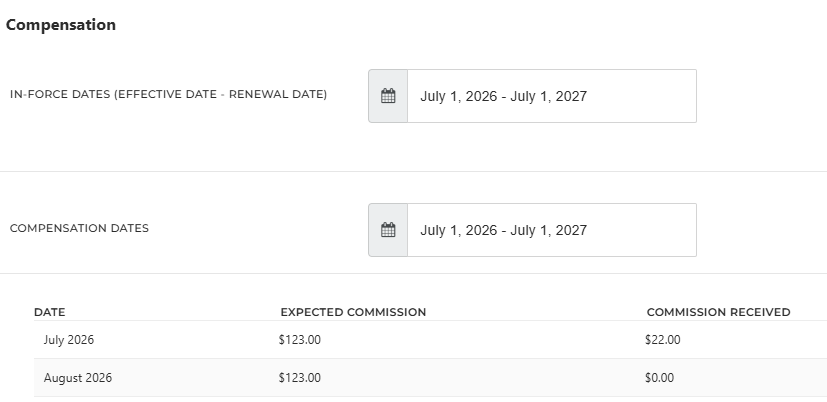
Expected Commission comes from the Profile tab
The expected amount is calculated from the Expected Commission amount and Payment Frequency you enter on the policy's Profile tab. Change either one there, and the expected amounts change here.
Commission Received comes from imported statements
When you import a carrier statement and it's matched to this policy, the amount shows up in the month the statement covers. You don't need to enter received amounts by hand, but it is an option for small statements. Importing the statement either in bulk or manually is what fills in the data.
Dates decide which months appear
The table only shows the months inside the policy's Compensation Dates. Anything outside that window doesn't appear here or in the Projected Revenue report.
Set up the policy first
Fill in these four fields on the policy's Profile tab before you open the Compensation tab. The table fills in once all four are set.
| Set up first | Why |
|---|---|
| Effective Date | Sets the start of the In-Force Dates and the default Compensation Start Date |
| Renewal Date | Sets the end of the In-Force Dates and the default Compensation End Date |
| Expected Commission | The dollar amount each payment should be |
| Payment Frequency | How often that amount is due: Monthly, Quarterly, Semi-Annual or Annual |
Open the Compensation tab
- Open the case. You can find a case by searching for it, or on the Cases/Policies tab on the left sidebar
- Go to the Benefits tab.
- Find the policy and click Actions > Edit.
- Open the Compensation tab.
The tab has three parts, top to bottom.
In-Force Dates
These show the policy's Effective Date and Renewal Date, or its Termination Date if it has one. They come straight from the Profile tab, so you update them there.
Compensation Dates
This is the window you want to track revenue for. The Start Date and End Date are matching the Effective Dates. If needed, you can change them to match the period you actually expect to be paid.
To use the longest window available, check Apply Maximum End Date. The End Date is set to 3 years after the Start Date, which is 37 months counting both the first and last month.
The monthly table
The table has one row for each calendar month in your Compensation Dates, with three columns.
Expected Commission shows what the policy should pay that month. You may see it called "Commission Schedule" in older articles.
Commission Received shows what the carrier actually paid, taken from your imported statements. A month with no imported statement shows $0. Compare the two columns to spot a payment that hasn't arrived.
Update Compensation Dates on many policies at once
- Go to Cases/Policies > Policy View.
- Check the box next to each policy you want to update.
- Open Bulk Actions > Update Compensation Dates.
- Set the Start Date and End Date, or check Apply Maximum End Date.
- Click Update.
How it feeds the Projected Revenue report
The Projected Revenue Report is built for each policy's Compensation tab. For any month outside a policy's Compensation Dates, the report shows $0 for that policy.
To include more months, widen the policy's Compensation Dates so they cover the report's date range.
When the numbers look wrong
| What you see | Why | Fix |
|---|---|---|
| The table is empty | One of the four Profile tab fields is blank | Fill in Effective Date, Renewal Date, Expected Commission and Payment Frequency |
| The Effective Dates won't change | They come from the Profile tab | Update the Effective, Renewal or Termination Date on the Profile tab |
| A month you were paid for shows $0 | The statement for that month hasn't been imported, or wasn't matched to this policy | Import the statement and match it to this policy |
| The Projected Revenue report shows $0 | The report's date range is outside the policy's Compensation Dates | Widen the Compensation Dates to cover the report's range |
| Changing the Compensation Formula didn't change the numbers | The formula is used for disclosure forms only | Update Expected Commission or Payment Frequency on the Profile tab |
Still seeing an empty table after all four fields are filled in? Submit a request and we'll take a look.
What the Compensation tab does not cover
- Months outside the Compensation Dates. Widen the dates to include them.
- Windows longer than 37 months. Use Apply Maximum End Date for the longest window.
- Compensation Formulae. A separate, carrier-level feature used for CAA compensation disclosure forms, not for this tab's numbers. See Compensation Disclosure Tools.
Reviewing Expected Compensation
- Effective Date and Renewal Date are set on the Profile tab
- Expected Commission amount is set on the Profile tab
- Payment Frequency is set on the Profile tab
- Compensation Dates cover the months you want to track
- Statements for those months are imported and matched to the policy
- Your Projected Revenue report range falls inside the Compensation Dates
A few terms
| Term | What it means | Where it lives |
|---|---|---|
| Policy | An insurance product on a case. Some screens call it a benefit | Case > Benefits tab |
| In-Force Dates | The dates the policy is active, from Effective Date to Renewal or Termination Date | Profile tab, shown on the Compensation tab |
| Compensation Dates | The months you track commission for | Compensation tab |
| Expected Commission | What the policy should pay each month, based on amount and Payment Frequency | Profile tab (amount), Compensation tab (by month) |
| Commission Received | What the carrier actually paid, from imported statements | Compensation tab |
| Compensation Formula | A named commission schedule used on CAA disclosure forms | Carrier edit tab |