NextAgency Agency Management System Logo
  • Products
    • NextAgency Product Overivew
    • NextCommission Product Overivew
    • Security
  • Components
    • Agency Management
    • CRM
    • Marketing & Communication
    • Commission Tracking
    • NextMarket
  • Onboarding
  • Compare
  • Pricing
    • NextAgency Pricing
    • NextCommission Solo – Pricing
  • FAQ
  • Login
  • Products
    • NextAgency Product Overivew
    • NextCommission Product Overivew
    • Security
  • Components
    • Agency Management
    • CRM
    • Marketing & Communication
    • Commission Tracking
    • NextMarket
  • Onboarding
  • Compare
  • Pricing
    • NextAgency Pricing
    • NextCommission Solo – Pricing
  • FAQ
  • Login
Start Free Trial
Get Demo
  1. Take 44 / NextAgency
  2. Using NextAgency Articles
  3. Administration

Administration

Follow New articles New articles and comments
  • NextAgency: Activity Log History
  • NextAgency: Adding and Managing Carrier Credentials
  • NextAgency: Managing State Licenses
  • Populate Word Documents Using Mail Merge

Administration

Follow New articles New articles and comments

Licenses, Credentials and Activity Log

  • NextAgency helps you track and find a log of all events that occur within a specific case or for the entire agency. Activity log history gives you a pulse on what's going on. It helps answer: "Who, from my agency, is doing what with such and such client?"

    Update (3/11/2020): we help describe the new activity log tab in this video.

    In NextAgency, you can find a log of all events that occur within a specific case on the Activities tab.


    On the Activities tab of a case, you can do the following:

    • View all activity records related to this case.
    • Filter the activities by users, contacts, and creation date.


    • Search for specific activities.
    • Select the number of activity records to display on the page.

    NextBroker_Activities_05.png

    In NextAgency, you can view activities not only for a specific case but also for the entire agency. To do that, in the navigation pane, click Fast Access > Activities.

    NextBroker_Activities_06.png

    NextBroker_Activities_07.png

    On this page, you have options similar to those at the case-specific tab:

    • View the records of all the activities that took place within your agency.
    • Filter the activities by cases, users, contacts, and creation date.

    NextBroker_Activities_08.png

    • Search for specific activities.
    • Select the number of activity records to display on the page.

    NextBroker_Activities_05.png

    Need more help? Please contact our support team.

  • A carrier credential is the login information about the broker or agent, which is stored in NextAgency. To open the Carrier Credentials page:

    1. In the navigation bar, click Fast Access > Carrier Credentials.

    Here you can see a list of all carrier credentials that have been created in NextAgency, with their names, types, settings, and available actions. 

    Adding a Carrier Credential

    To add a new carrier credential, follow these steps:

    1. In the upper-right corner of the page, click Add New.
    2. In the Add New Broker ID dialog that opens, specify the following information:

             NextBroker_CarrierCredentials_02.png

    • Carrier: Select the carrier for which you are adding the ID.
    • Name: Enter the name of the broker or agency.
    • Type: Select the type of the carrier, either Broker or Agency.
    • Agent/Broker ID: Enter the ID of the agent or broker.
    • Carrier Site Username: Enter the username that the carrier will specify for authorization with NextAgency.
    • Carrier Site Password: Enter the password that the carrier will specify for authorization with NextAgency.
    • Carrier Site URL: Enter the carrier website URL.

    After you click Save, the carrier ID will appear in the list.

    Managing Carrier Credentials

    The following carrier credential management options are available in the carrier credentials list:

    • Preview carrier credential information.
    • Edit carrier credential information.
    • Delete carrier credential information.

    Need more help? Please contact our support team.

  • To start managing the state licenses, follow these steps:

    1. In the upper-right corner of any NextAgency page, click your profile icon and choose View Profile.
    2. On the My Profile page that opens, go to the State Licenses tab.
    3. On the State Licenses tab, you can see a list of all licenses that have been created in NextAgency, with the following data:

             NextBroker_Licenses_01.png

    • Default: Select this option if you want to set this license as default in NextAgency.
    • Name: The name of the agency that holds the license.
    • License Number: The ID of the license.
    • State: US state where this license is valid.
    • Entity Type: Type of the license holder - either Agency or Broker.
    • License Type: Services for which this license is valid.
    • Renewal Date: Date on which the license should be renewed.
    • Remove: Click this link to delete the license records from the list.
    • Add License: Add a new license record to the list (an empty line will appear).

    You can edit the license records directly in the list.

    Need more help? Please contact our support team.


  •                                                            


    NextAgency enables you to quickly and easily create Mail Merge documents using Word. These can then be converted to other formats like PDFs.

    To begin creating Mail Merge documents, please follow the below steps:

    1. How to set up the Word document for Mail Merge:

    Windows Users:

    i) Open Microsoft Word on your computer.

    ii) Click on "File" and select "New Document" to create a new Word document.

    iii) Customize the document formatting according to your requirements.

    For example, let's explore a sample format that includes a table. In this document, the first column contains basic information about a case record, while the second column represents dynamic data that will be generated using Mail Merge.
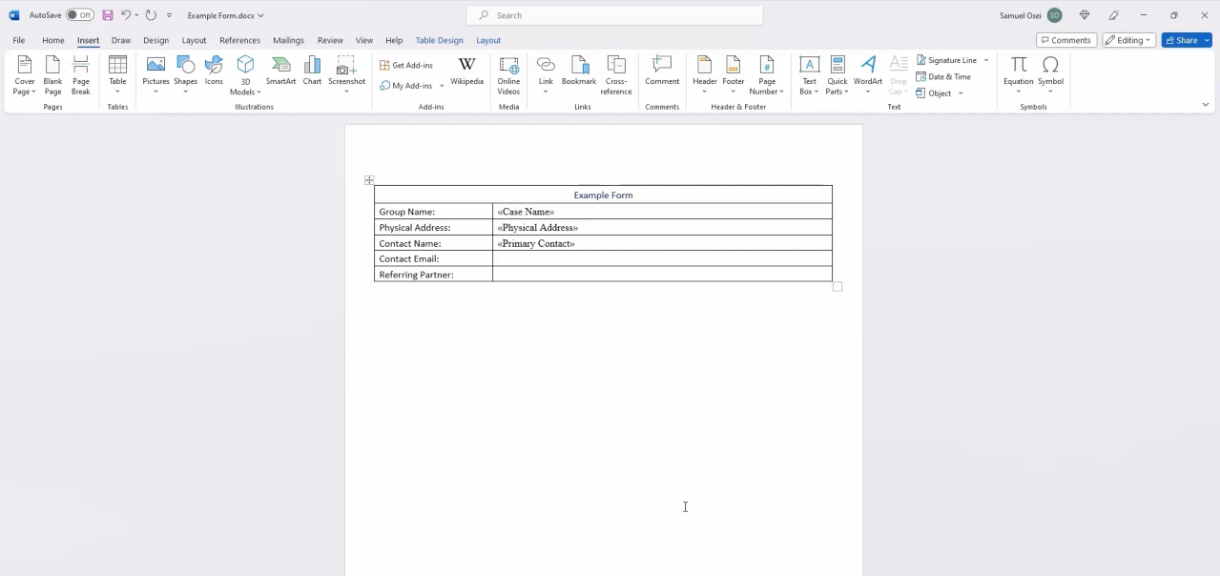


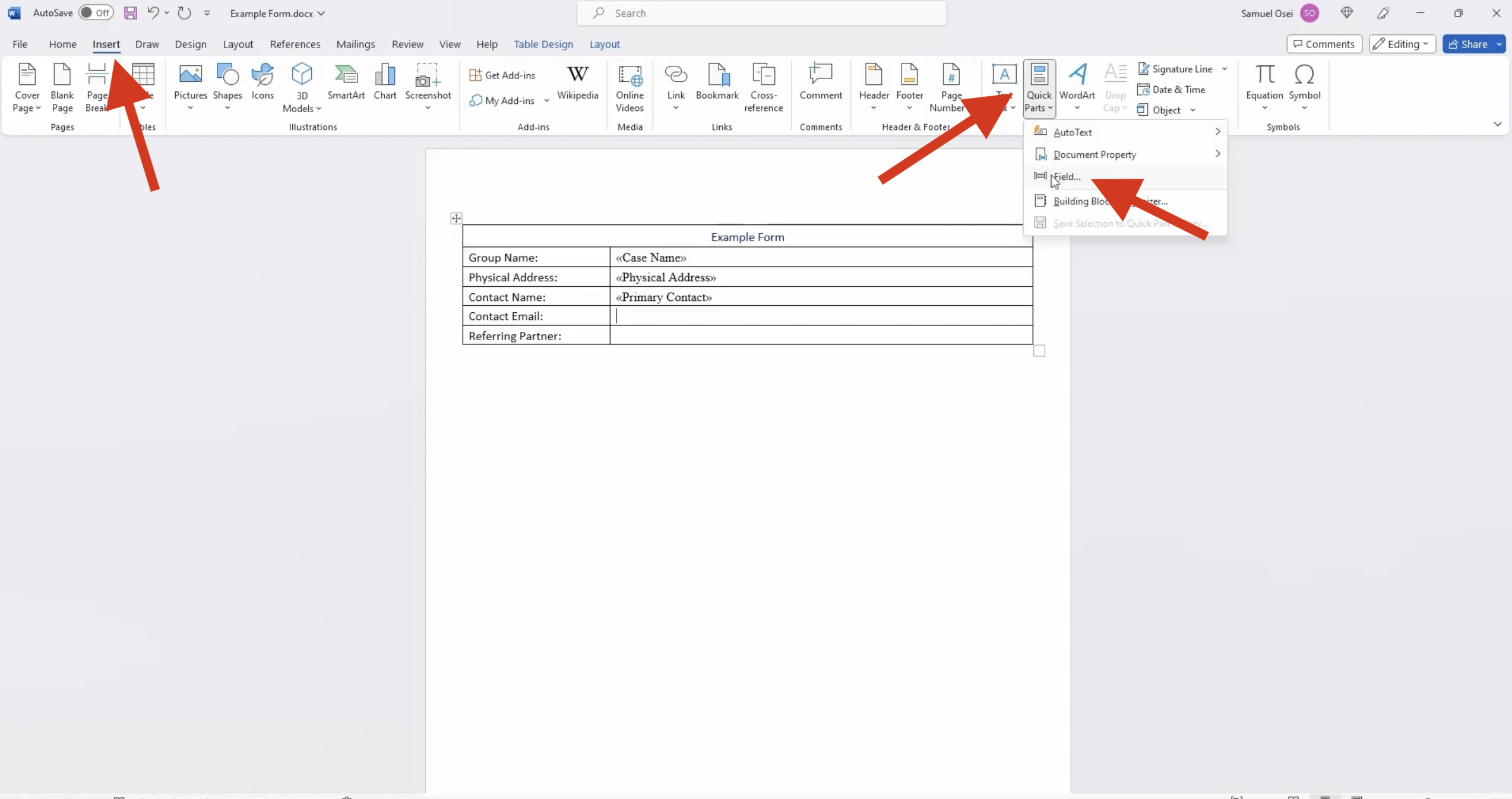
    iv) Place your cursor in the field where you want the text to be generated.

    v) In Word, click on "Insert" and choose "Quick Parts," then select "Field."


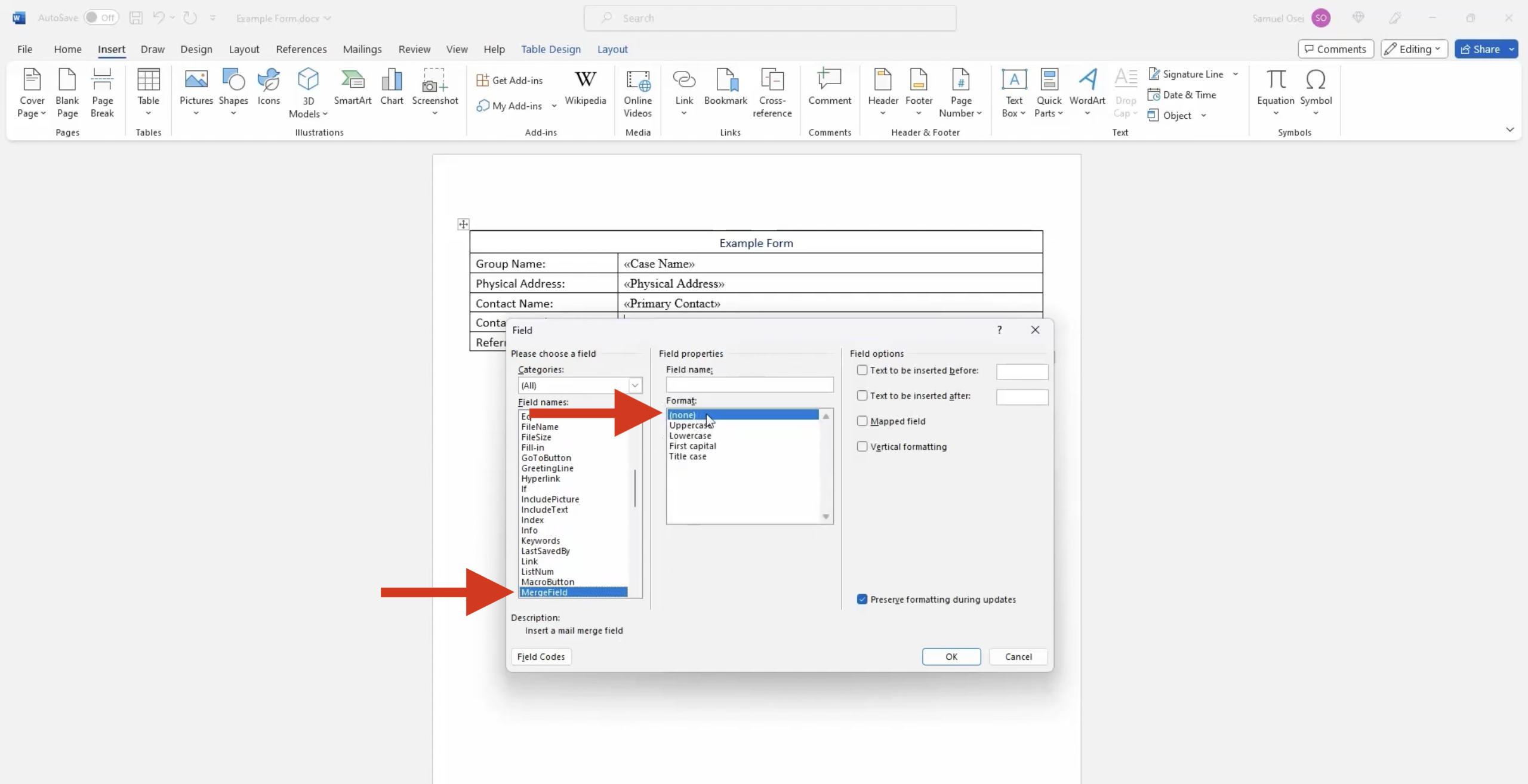
    vi) A pop-up window will appear. Please select "MergeField" under Field Names and set the Format to "None."


    vii) Enter the desired "Field Name." For instance, if you want to use the field "Primary Contact Email," input "Primary Contact Email" as the Field Name.
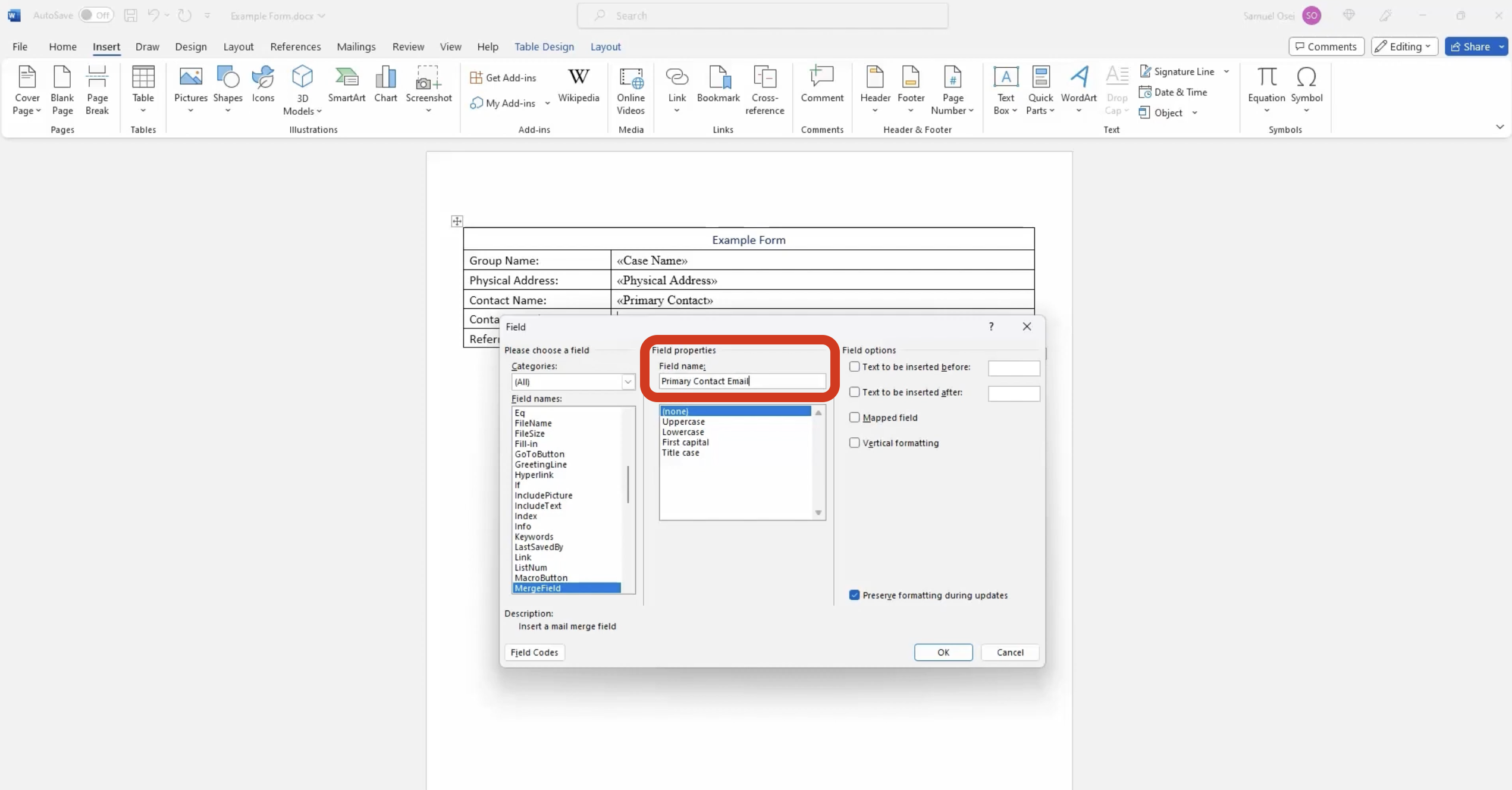


    viii) Click 'OK' to proceed. The field will be formatted as «Primary Contact Email» in the Word document.

    ix) Repeat the same steps for all the fields you wish to fill.

    x) Note that special formatting is required for custom fields in NextAgency. Add "Case-Custom" before the custom field name. For example, if you have a case custom field named "Referring Partner," write it as "Case-Custom Referring Partner" in Word.


    Mac Users:
     

    i) Launch Microsoft Word on your computer.

    ii) Navigate to the "File" from the menu bar and click "New Document" to initiate a fresh Word document.

    iii) Customize the document formatting according to your requirements.

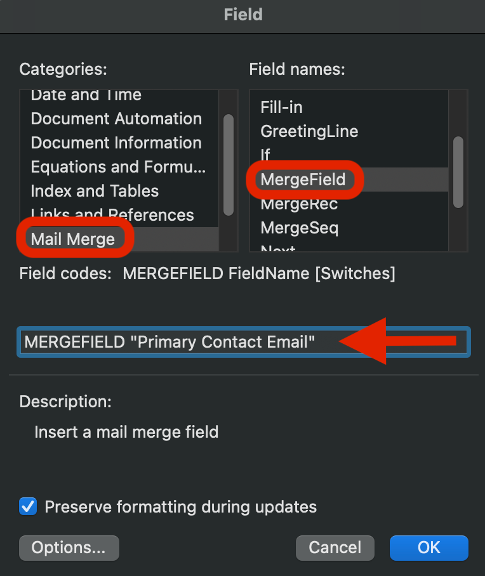
    iv) To add the field's name, place your cursor in the field where you want the text to be generated. Click on the "Insert" tab and click on "Field". See attached screenshot.



    v) Locate "Mail Merge" in the 'Categories' column, and in the adjacent column named 'Field names', select "MergeField".

    vi) In the "MergeField" box, enter the field name you desire, enclosing it in quotation marks and using the correct syntax for your specific field. Example: MERGEFIELD "Primary Contact Email". Finally, click "Ok" or press "Enter" and save your document.


    vii) Note that special formatting is required for custom fields in NextAgency. Add "Case-Custom" before the custom field name. For example, if you have a case custom field named "Referring Partner," write it as "Case-Custom Referring Partner" in Word.


     After defining all the fields in your document, log in to NextAgency to seamlessly finalize the Mail Merge process.


    2. To upload the created Word document into NextAgency, please follow these steps: 

    i) Log in to NextAgency, and go to Settings.

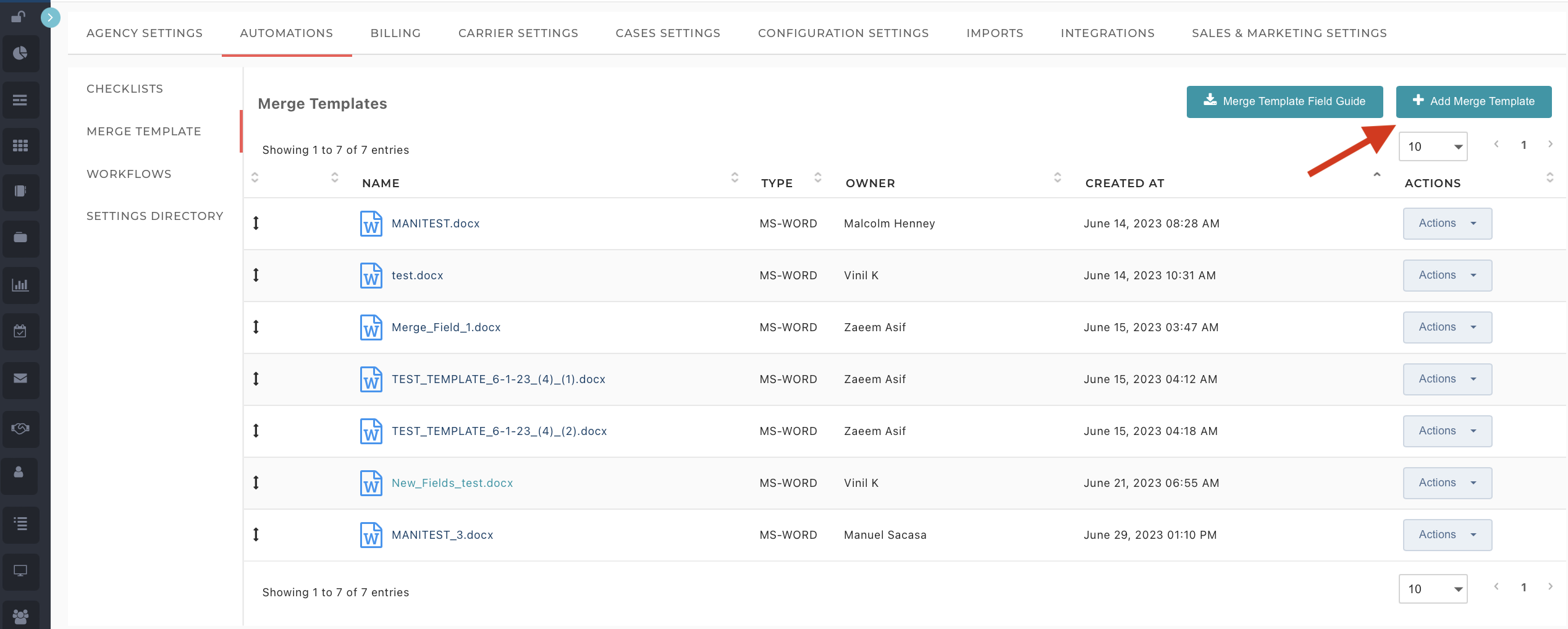
    ii) Navigate to the Automations tab and select "Merge Template".

    iii) Click on "Add Merge Template" and upload the Word file you created in the steps, above.


    iv) On the same page, you will find the 'Merge Template Field Guide' document that comprehensively lists all the supported fields within NextAgency.


    3. How to create a Mail Merge document for a case record:

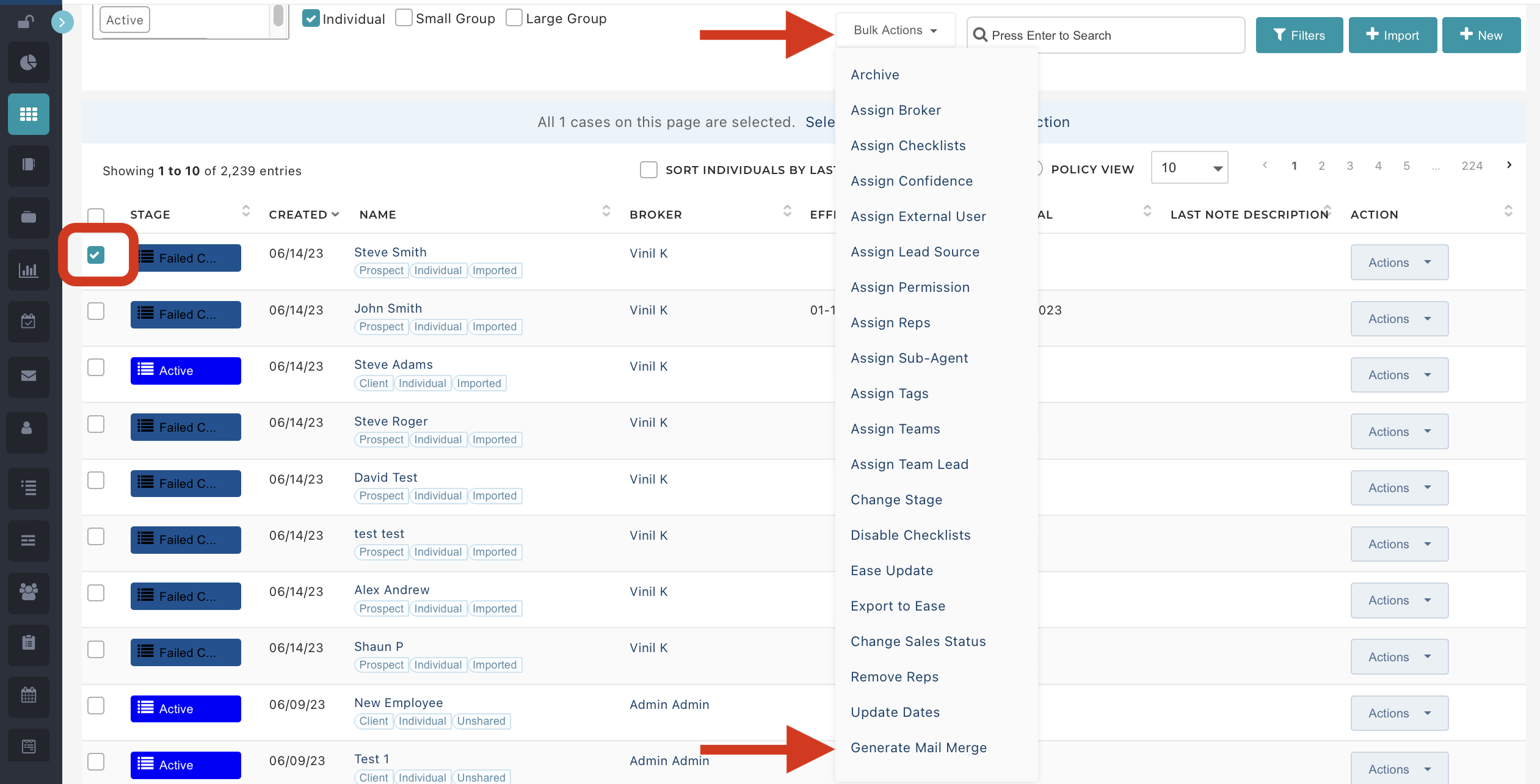
    i) Once you have successfully uploaded the Word document, you are ready to generate Mail Merge documents. To initiate the process, please proceed to the Cases/Policies page. Select the desired case records you wish to use for the Mail Merge document (the filter can help you quickly identify the right records). Once you select the records, click on 'Bulk Actions' and choose 'Generate Mail Merge'.


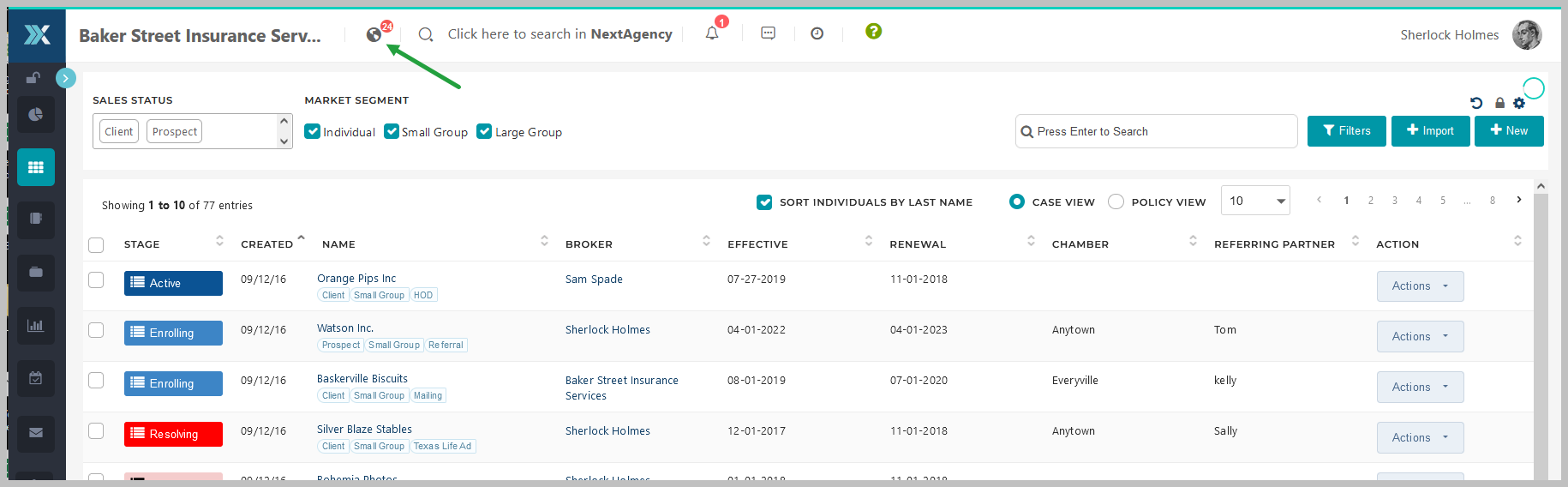
    ii) NextAgency will notify you when your merged documents are ready. Click on the notification icon (the globe in the header on every NextAgency page).


    iii) Depending on how many Word documents you are creating, this may take a few minutes. Click on the specific notification that your documents are successfully created. NextAgency will download your documents in a zip file. Extract the documents as you normally would. 

    Should you have any questions or require any assistance, our support team is readily available to help you. Feel free to contact them for any queries you may have by clicking on the green question mark in the header or by email us at Support@NextAgency.com.


Resources

Help Desk

The NextAgency Blog

Company

About

Contact Us

Capterra G2

Privacy            Copyright 2025 Take 44, Inc.            Terms & Conditions