NextAgency Agency Management System Logo
  • Products
    • NextAgency Product Overivew
    • NextCommission Product Overivew
    • Security
  • Components
    • Agency Management
    • CRM
    • Marketing & Communication
    • Commission Tracking
    • NextMarket
  • Onboarding
  • Compare
  • Pricing
    • NextAgency Pricing
    • NextCommission Solo – Pricing
  • FAQ
  • Login
  • Products
    • NextAgency Product Overivew
    • NextCommission Product Overivew
    • Security
  • Components
    • Agency Management
    • CRM
    • Marketing & Communication
    • Commission Tracking
    • NextMarket
  • Onboarding
  • Compare
  • Pricing
    • NextAgency Pricing
    • NextCommission Solo – Pricing
  • FAQ
  • Login
Start Free Trial
Get Demo
  1. Take 44 / NextAgency
  2. Using NextAgency Articles
  3. Settings and Customization

Settings and Customization

Follow New articles New articles and comments
  • NextAgency: Adding Agency Users
  • Settings
  • Settings Directory
  • NextAgency: Files
  • NextAgency: Carrier Settings
  • NextAgency: Adding and Managing Tags
  • NextAgency: Adding Custom Fields

Settings and Customization

Follow New articles New articles and comments


  • If you're looking to add a new user to your NextAgency account, there are a few steps you need to follow first.

    Firstly, you must ensure that your NextAgency license has enough seats available. To check this, go to Settings > Billing > Manage Seats. Here, you can increase the number of seats based on the number of users you want to add. Once you've made the necessary changes, be sure to click Save to update seats.

    Once done, you can follow the below steps to add new users to your NextAgency account and ensure that everyone on your team has access to the tools they need.


    To add new agency users in NextAgency, you should have Administrative Broker permissions, so this article is aimed at users who have such permissions within NextAgency.

    1. In the navigation bar, click Settings > Agency Settings >  Users.
    2. In the upper-right corner of the Users page that opens, click Add an Authorized User.

    1. In the Add an Authorized User window that opens, you should fill in the user's name, email address, location, and role. The field arrangement in the window may change depending on the role.

            NextBroker_Users_02.png

    1. When ready, click Save. As a result, the user will get an invitation by email.


    The following user roles are available:

    • Administrative Broker. Administrative Brokers have broad authority concerning your agency’s business. They may view and manage all of your agency’s prospects and clients, including those of other brokers. Administrative Brokers may manage carrier profiles and enrollment kits. They have access to your agency’s billing information including your agency's license fees. If new users should not have these permissions, consider adding them as Writing Brokers or Support Staff.
    • Writing Broker. Writing Brokers are permitted to view and make changes to their own prospects and clients and to appoint Support Staff to help them. They may manage carrier profiles and enrollment kits used by your agency. Only Administrative Brokers may appoint Writing Brokers. Administrative Brokers can customize the permissions for Writing Brokers within the same Add an Authorized User window.

                NextBroker_Users_03.png

    • Broker Support. When you select this role, an additional field will appear, where you should specify the corresponding associate brokers/writing brokers. Support Staff is permitted to view and edit only the prospects and clients to which the Broker adds them as the user has access. If appointed by an Administrative Broker, they have access to all prospects and clients in your agency. If appointed by a Writing Broker, they have access only to that Writing Broker's prospects and clients. Administrative Brokers can customize the permissions for Support Staff within the same Add an Authorized User window.

            NextBroker_Users_04.png

    • Agency Support. Support Staff are permitted to view and edit only the prospects and clients to which the Broker adding them as user has access. If appointed by an Administrative Broker, they have access to all prospects and clients in your agency. If appointed by a Writing Broker, they have access only to that Writing Broker's prospects and clients. Administrative Brokers can customize the permissions for Support Staff within the same Add an Authorized User window.

            NextBroker_Users_05.png


    IMPORTANT: Before adding any broker as an authorized user, make sure that you can trust this person.

    If you have any further questions or concerns, don't hesitate to reach out to our support team for assistance.

    Need more help? Please contact our support team.

  • On the Settings page, you can manage information that is relevant to your NextAgency account and access the most important functionalities of NextAgency with just a couple of clicks.
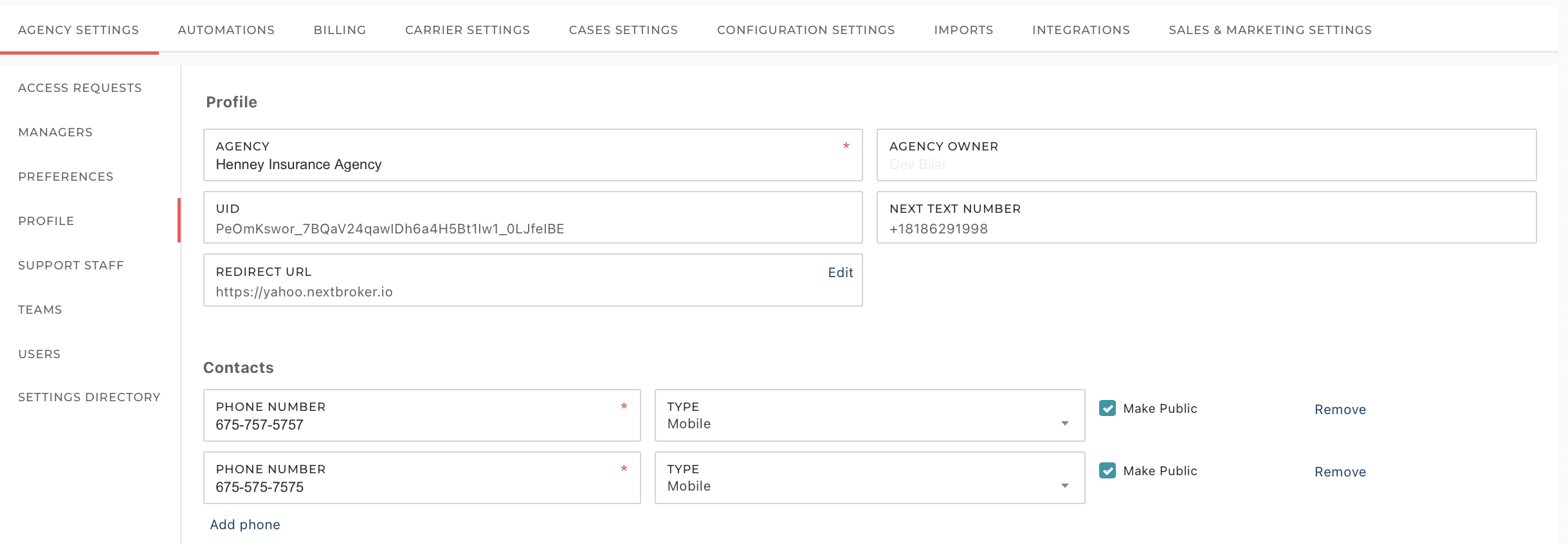
     

    There are two ways to access the page:

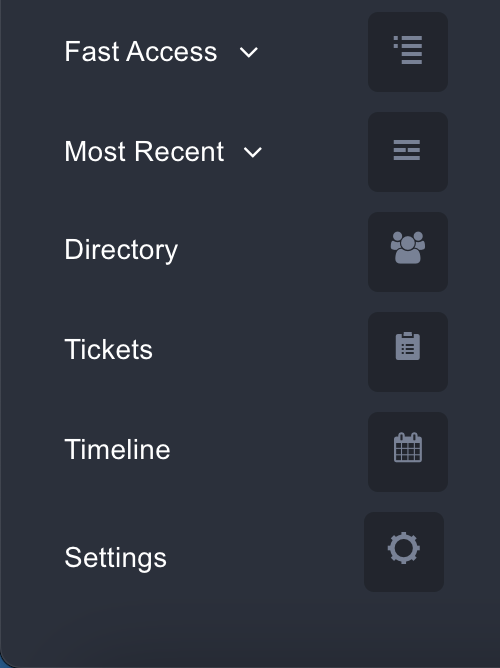
    1. In the navigation bar, scroll to the bottom and click on Settings.
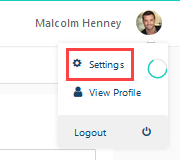
    2. In the upper-right corner of any page, click your name, and then choose Settings.
     

    blobid0.png


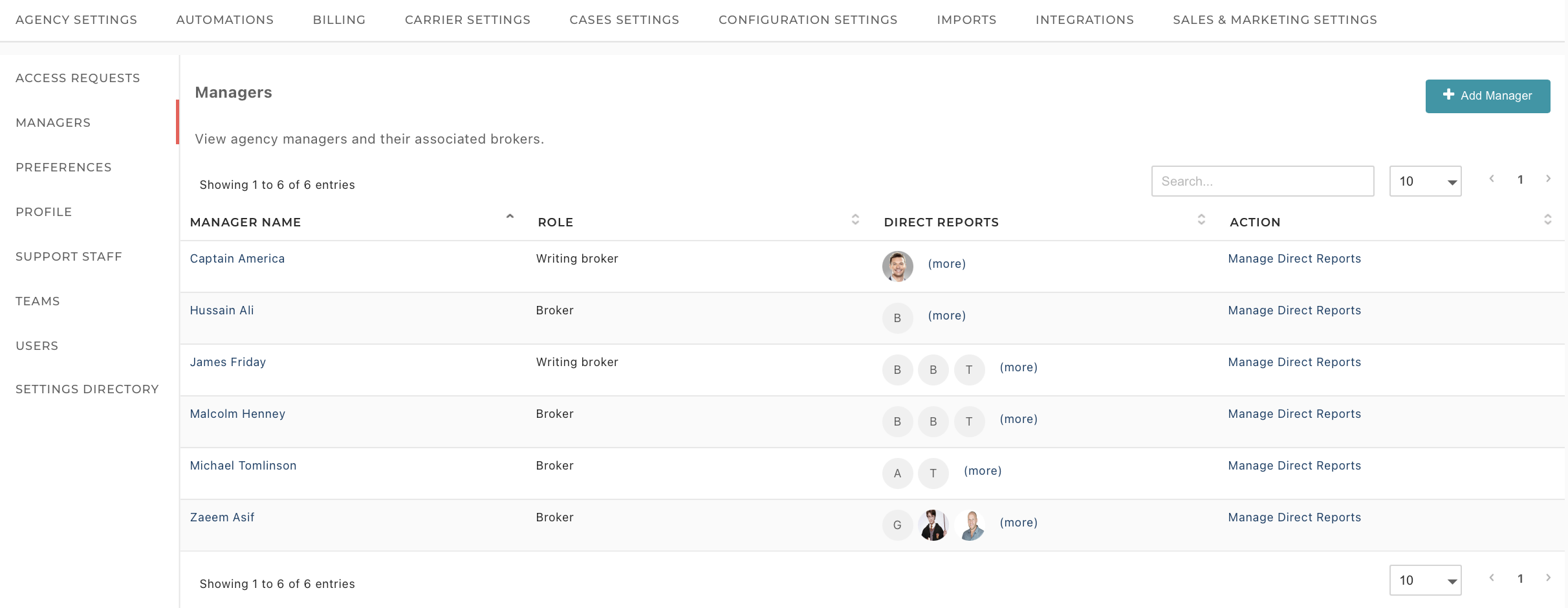
    The Settings page is divided into several subpages, so let's explore each one of them.


    Agency Settings

    Access Requests: You can monitor all access requests made by our support team on this page. Access requests are initiated when the team needs to investigate or replicate an issue you've reported for documentation purposes or during the initial data import phase. After collecting the necessary information, the team will proceed with the required actions. You also have the option to terminate access on this page.

    You can grant/terminate access by Clicking on Actions > Grant Access/Terminate Access.

    If you cannot locate the 'Access Request' option within the Settings page, it may be because you have insufficient permissions. In such instances, administrators have the authority to grant or revoke access requests.


    Managers: You have the capability to both add and view your managers on this page.


    Preferences: The place where you can personalize your Personal and Agency preferences the way you like. Preferences has two tabs- Personal and Agency.


    Personal:
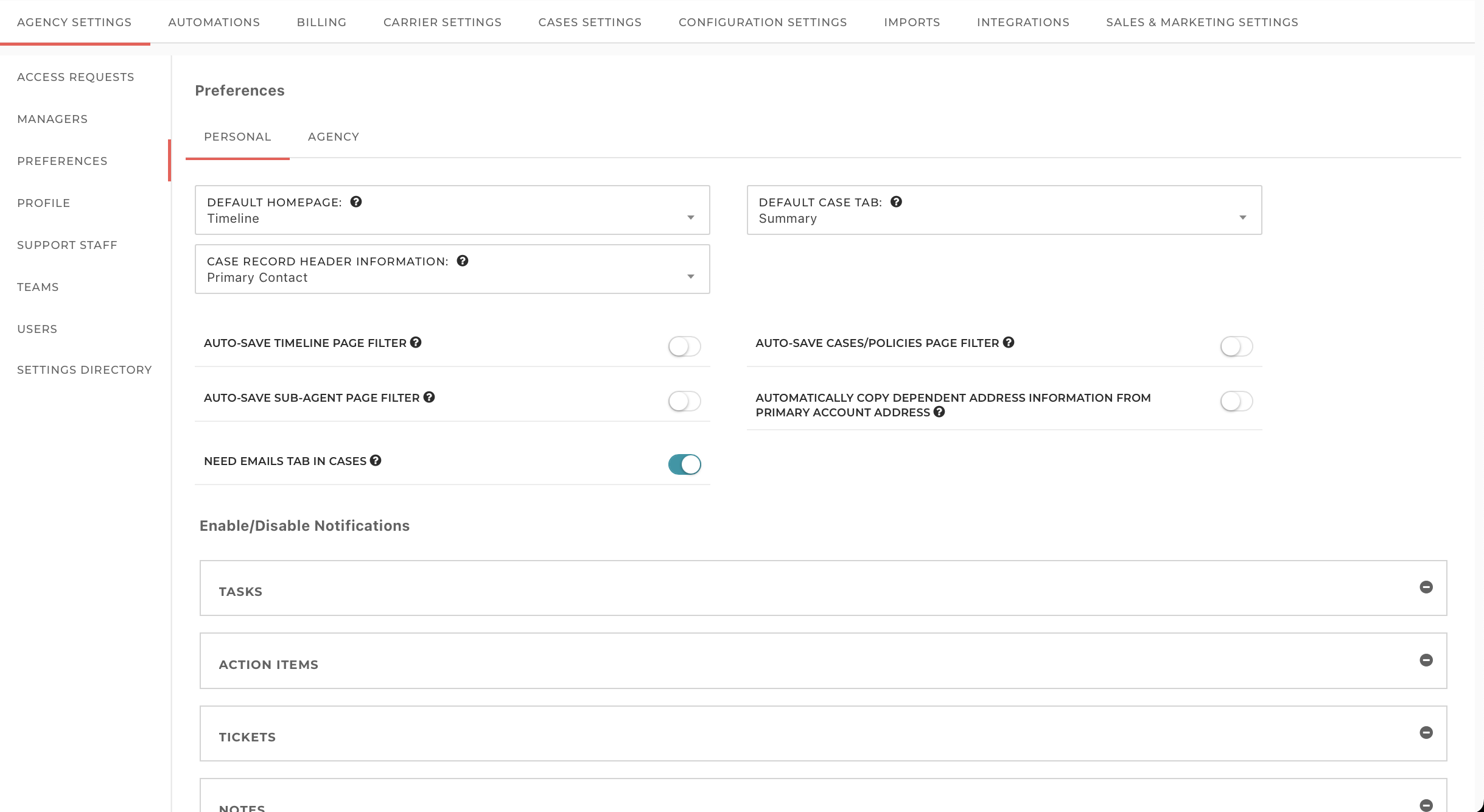
    • This page lets you set your default Home page and Case tab that you want to be on.

    • Auto-Save Timeline page filter: Once turned on, this will automatically save your Timeline filters based on your last filter.

    • Auto-Save Cases/Policies page filter: Once turned on, this will automatically save your Cases/Policies page filters based on your last filter.

    • Auto-Save Sub-Agent page filter: Once turned on, this will automatically save your Sub-Agent page filters based on your last filter.

    • Automatically copy Dependent address information from Primary account address: Turning this on will ensure that the dependent’s address is automatically copied from the Primary account address.

    • Need Emails tab in cases: To access your attached emails when using the Outlook add-on, you must enable this feature.
    • Enable/Disable Notifications: You can customize the way you receive notifications for each item in NextAgency. You can also turn off all of them.


    Agency:
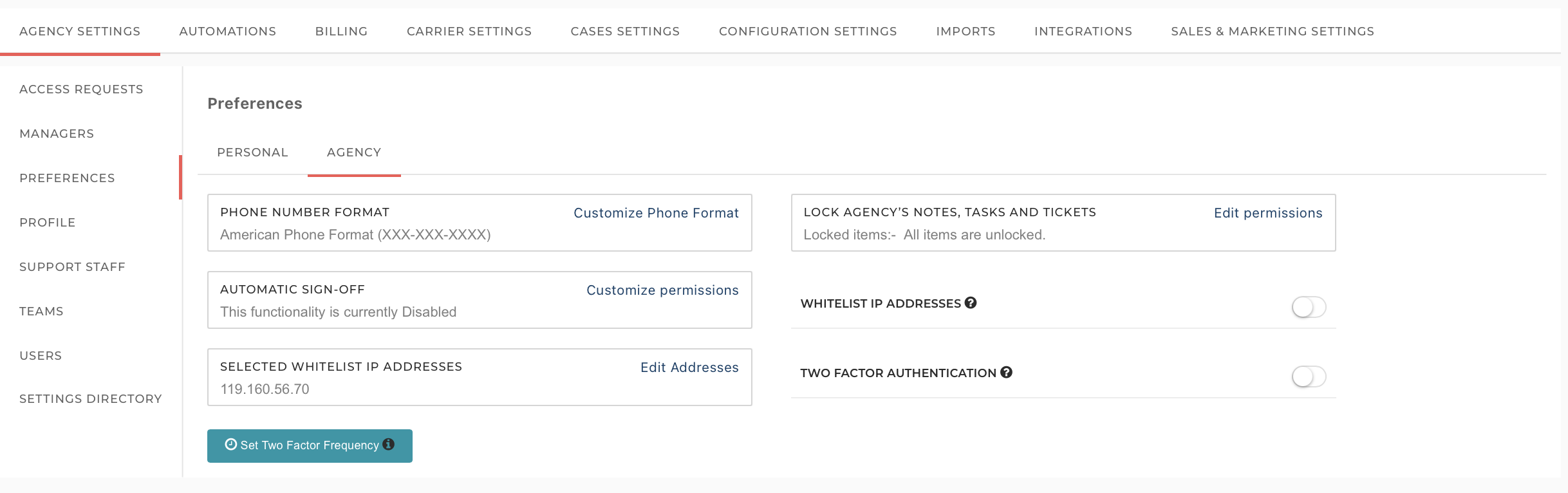


    Here you can customize your agency-wide settings like Phone number format, Locking/Unlocking Agency Notes, Tasks and Tickets, Auto-Sign off settings, and Two-factor authentication settings which will be reflected to all the users in your Agency.


    Profile: Manage your profile data, such as agency details, contact information, and locations.


    Support Staff: All your support staff details can be found here.
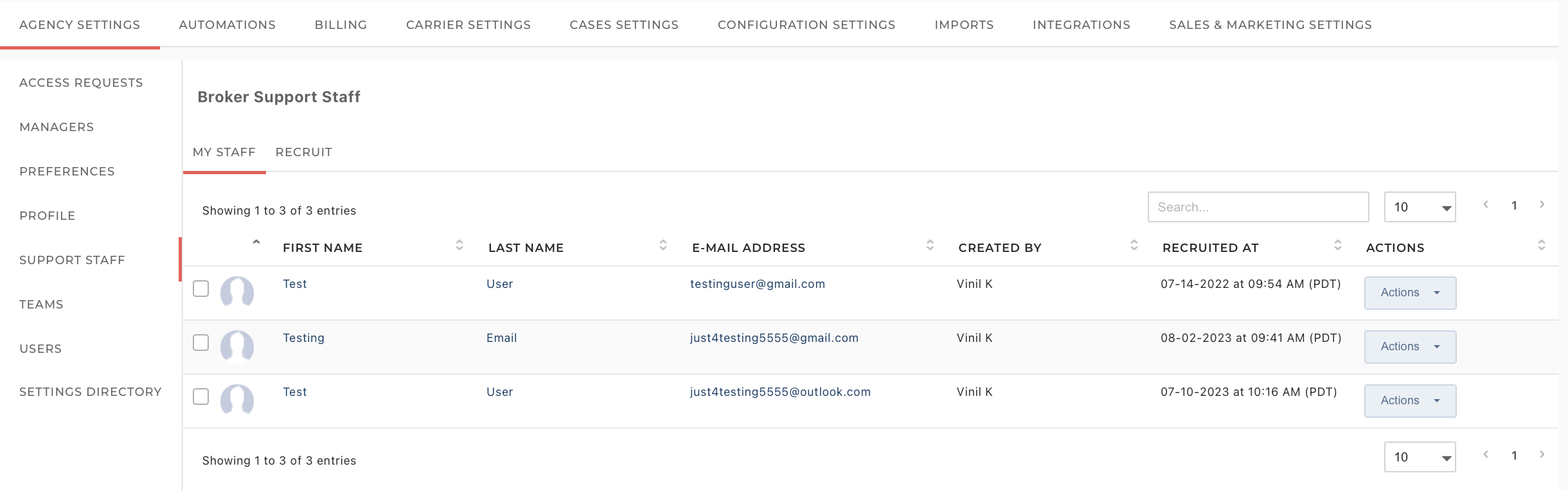


    Teams: This tab provides you with the ability to perform several actions. You can add teams, make edits to existing teams, and delete them. Additionally, there's a "Roles" tab where you can create new roles and assign them to users. Furthermore, you can edit and delete roles that already exist.
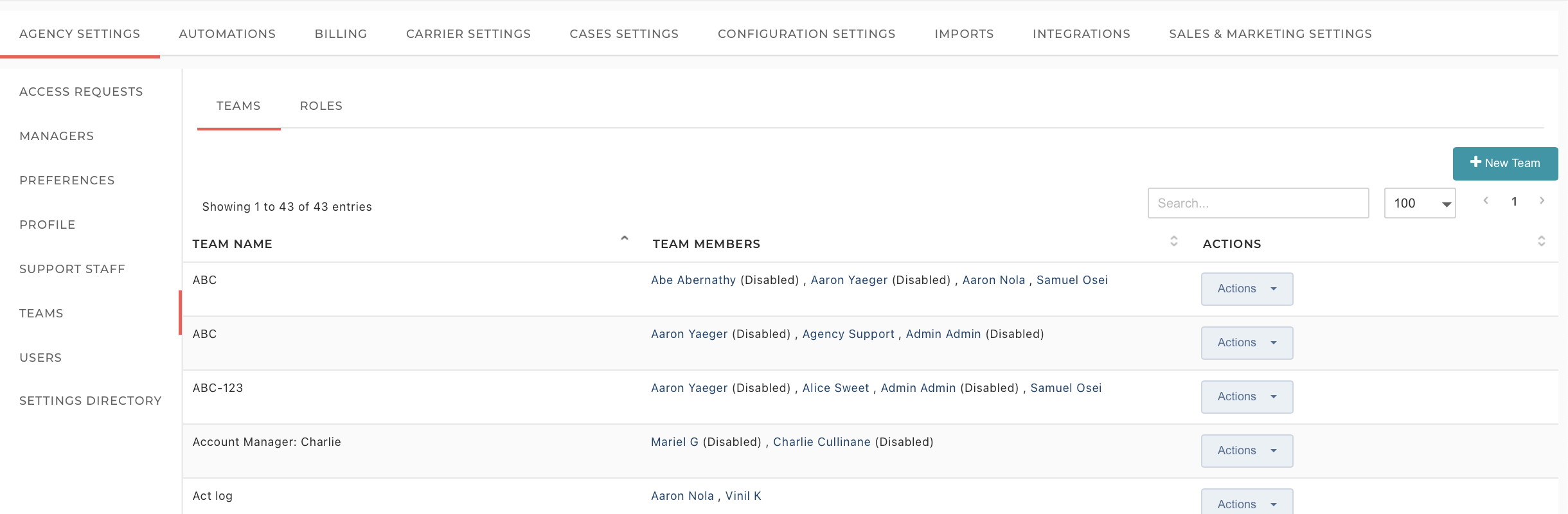


    Users: This page allows you to manage your agency users by adding, editing, or deleting them. To add a new user, simply click on 'Add an authorized user.' You can also filter users by their roles for easier navigation.
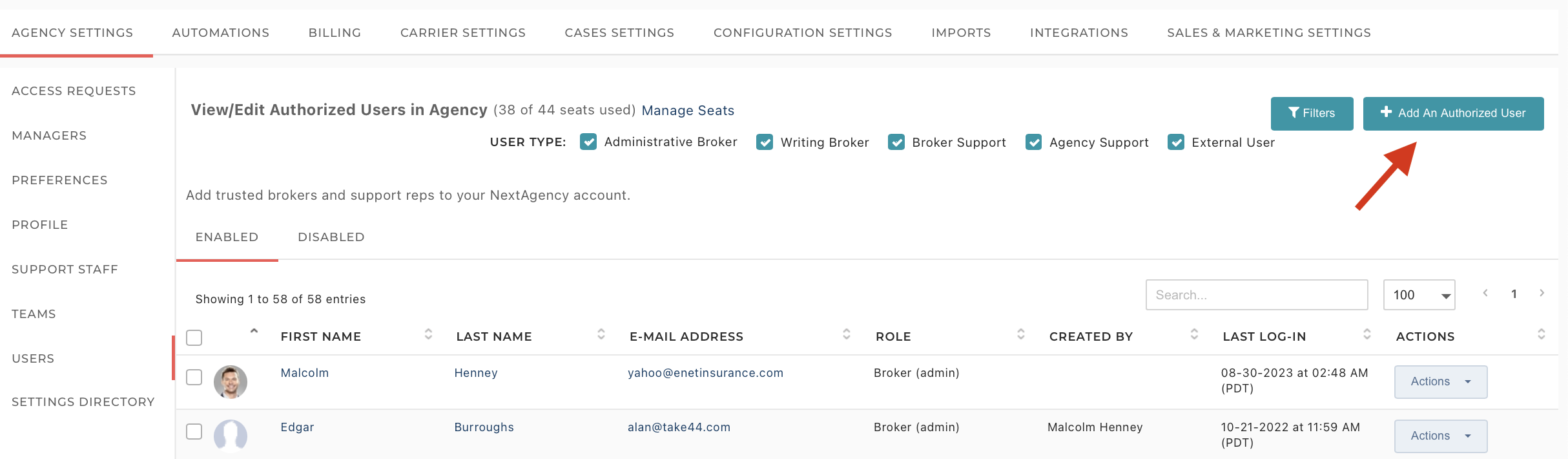


    Settings Directory: To help you find settings quickly, we present the attached directory. This PDF has three pages. The first sorts the settings alphabetically. The second page sorts the settings by where they were. The third by where they are now. You'll find this same option conveniently located at the bottom of every tab, ensuring easy access to the directory whenever you need it.


    Automations

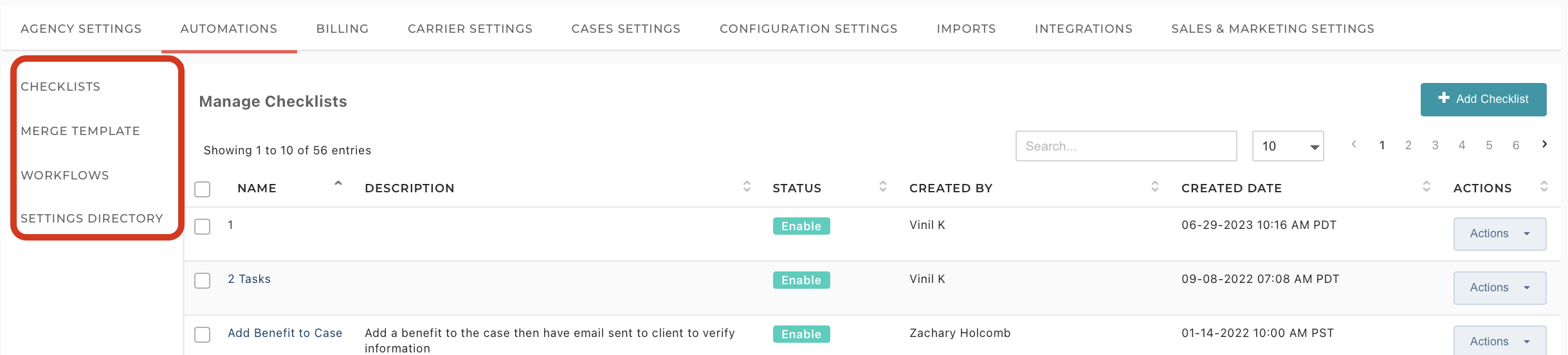
    This page serves as your central hub for configuring various automations such as Checklists, Merge Templates,and Workflows. Here, you have the flexibility to add, customize, and tailor these automations to align perfectly with your agency's specific preferences and requirements. This empowers you to streamline and automate your processes effectively, enhancing overall efficiency and productivity.


    Billing

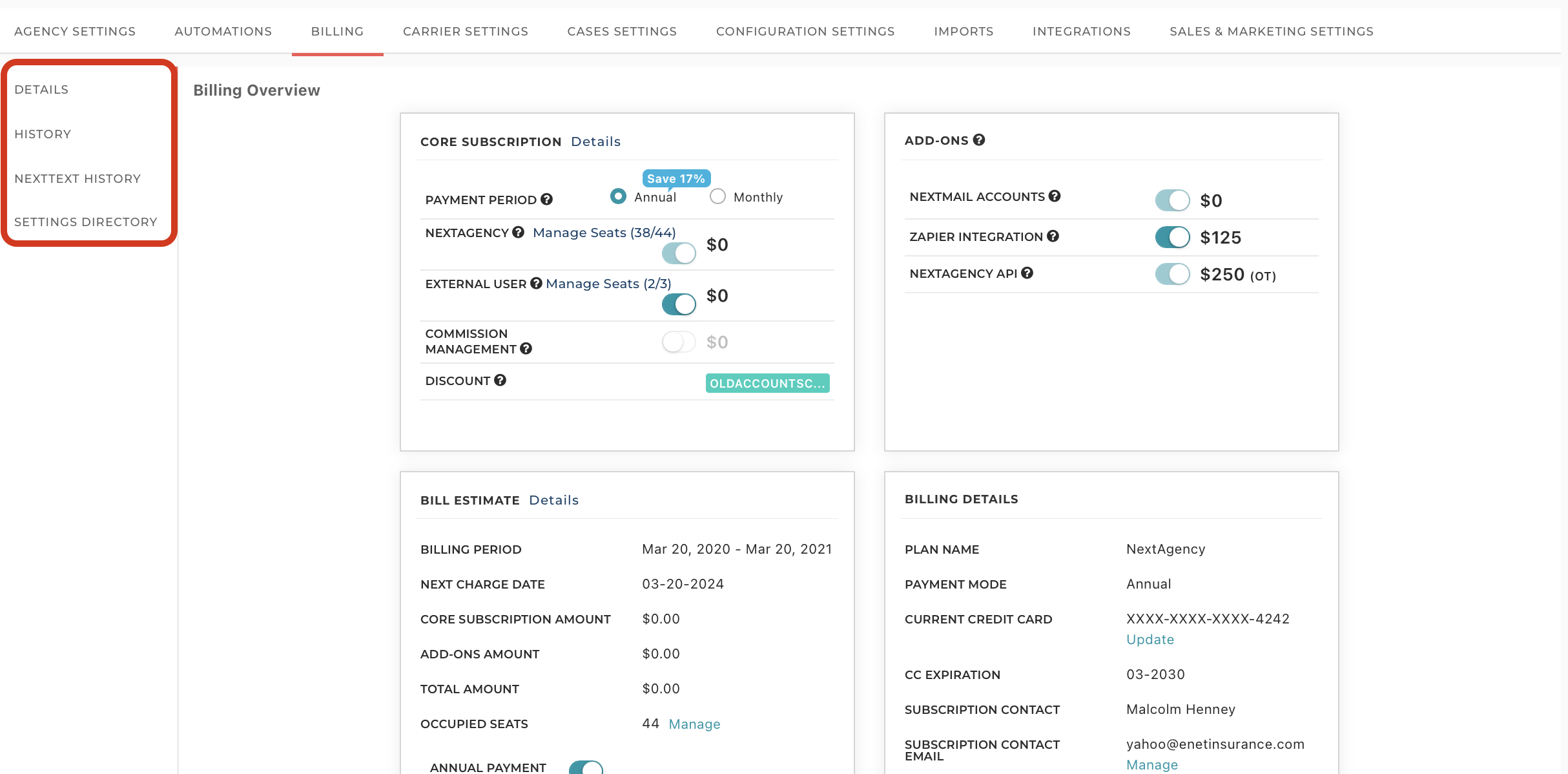
    On the billing tab, you can view your subscriptions, Add-ons, billing estimates, and billing details. You can also view the billing history, and NextText history from the menu on the left.


    Carrier Settings

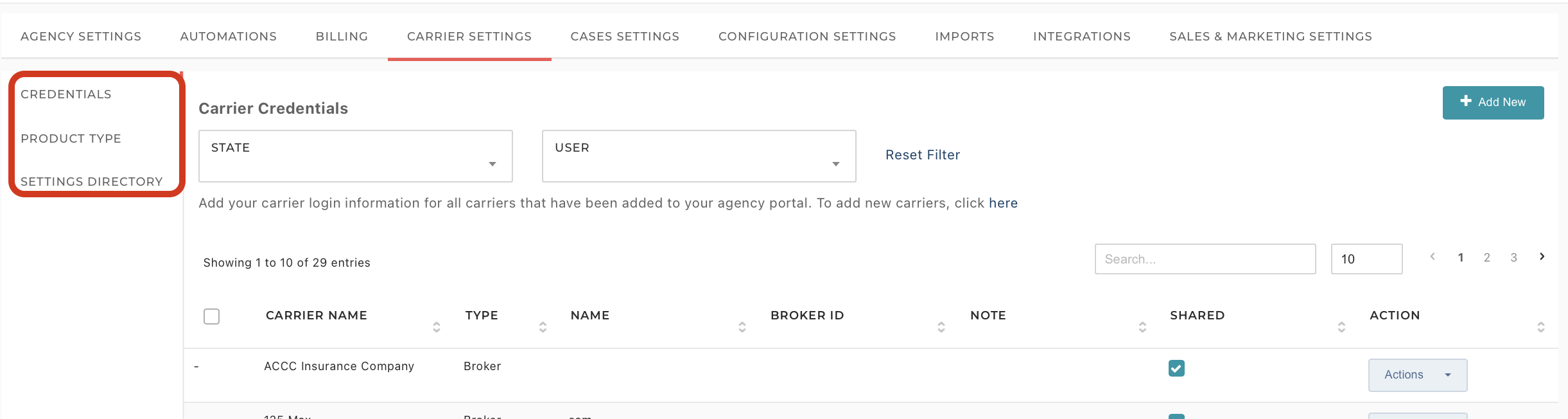
    Within this section, you have the ability to access and manage your Carrier Credentials and Product Types. This includes the ability to view, add, and edit the existing information for these crucial elements of your operations. This centralized platform empowers you to maintain and update essential data efficiently and accurately, ensuring your processes run smoothly.


    Case Settings
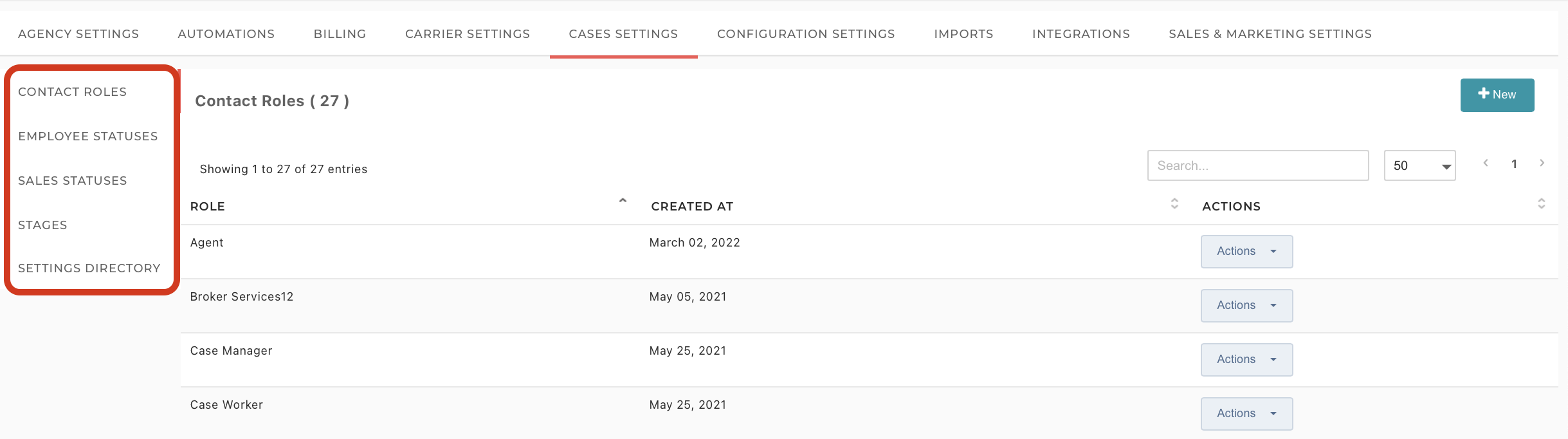


    The Case Settings section is for configuring and fine-tuning various aspects of your case records. This includes settings related to contact roles, employee statuses, sales statuses, and stages. By utilizing these settings, you can customize and optimize the way your case records are managed, ensuring that they align seamlessly with your business processes and requirements. We will proceed to review each of them individually below.

    Contact Roles: On this page, you have the capability to perform various actions related to contact roles. You can add new roles, view existing ones, make edits to their details, and, if necessary, delete specific roles. This functionality provides you with the flexibility to effectively manage and customize contact roles within your system.

    Employee Statuses: This page provides you with the capability to add different types of employee statuses. You can add and manage all of these distinct statuses from here, making it convenient and efficient to manage all the statuses.

    Sales Statuses: Although we offer "Client" and "Prospect" as default sales statuses, you can expand and tailor this list according to your specific business or agency requirements on this page.

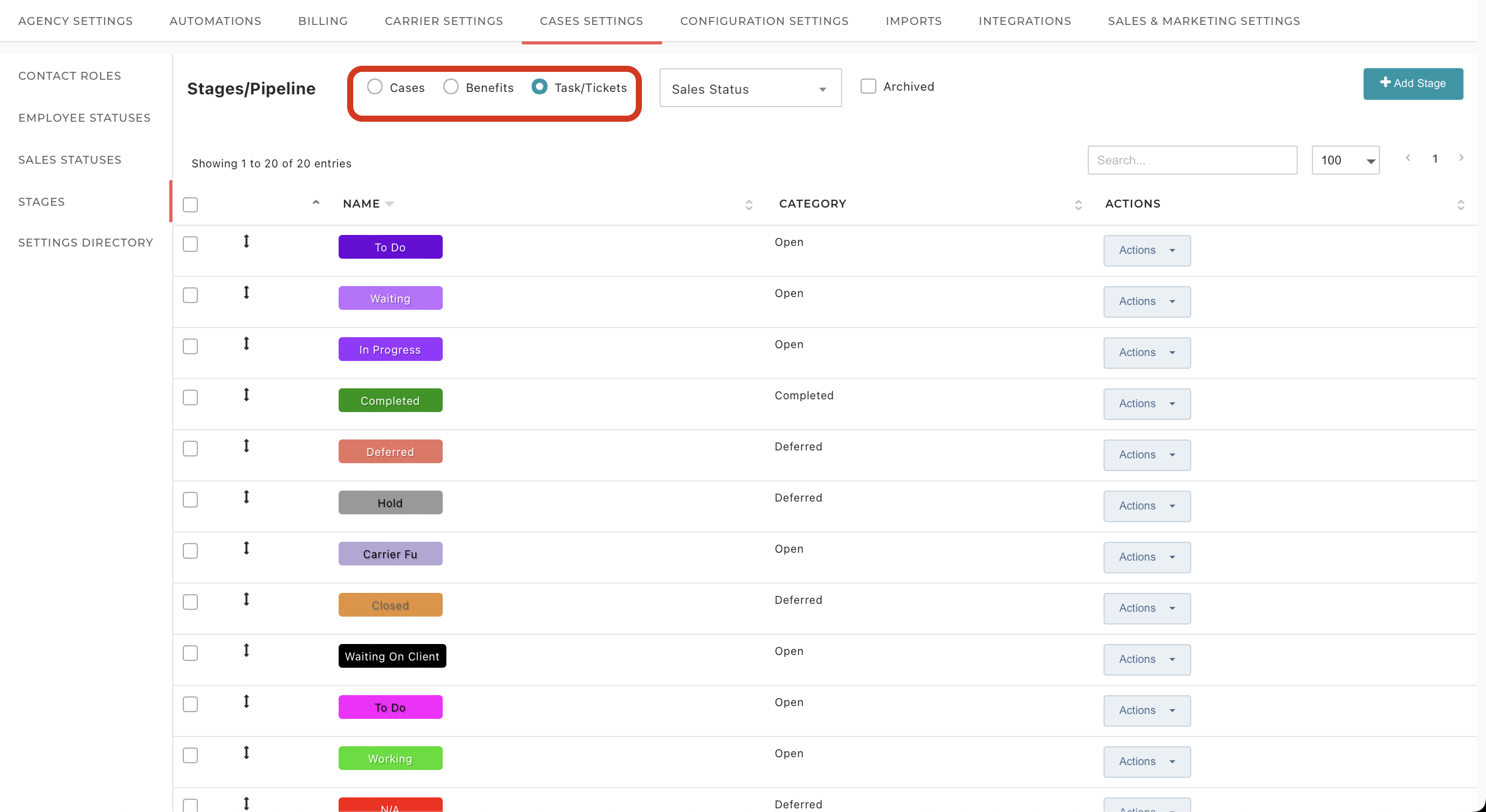
    Stages: On this page, you have the capability to add and modify stages for Case Records, Benefits, and Tasks/Tickets. You can create custom stages with names and styles that align with your preferences, which can then be applied to Cases, Benefits, or Tasks/Tickets as needed. To initiate the creation of the desired stage, simply switch to the respective section, whether it's Cases, Benefits, or Tasks/Tickets and click on 'Add Stage'.


    Configuration Settings
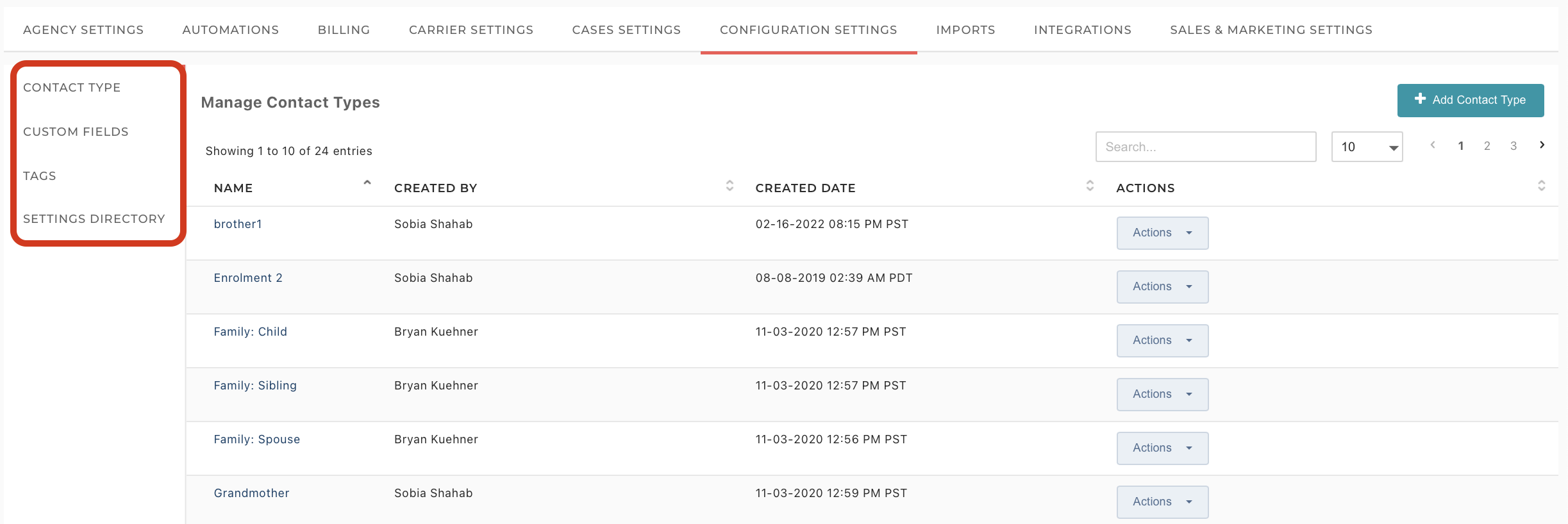


    This page serves as a comprehensive configuration hub, enabling you to fine-tune various essential settings. You can customize Contact Types and custom fields, and manage tags according to your specific needs and requirements. These configuration settings empower you to tailor your system to match the unique characteristics and attributes of your agency, ensuring a more efficient and personalized experience. We will now take a closer look at each of them, addressing them individually in the following sections.

    Contact Types: You have the flexibility to tailor contact types to align with your specific requirements. To create a new contact type, click on 'Add Contact Type,' and you will be able to assign it to your preferred contacts. This customization ensures that your contact categorization meets your precise needs.

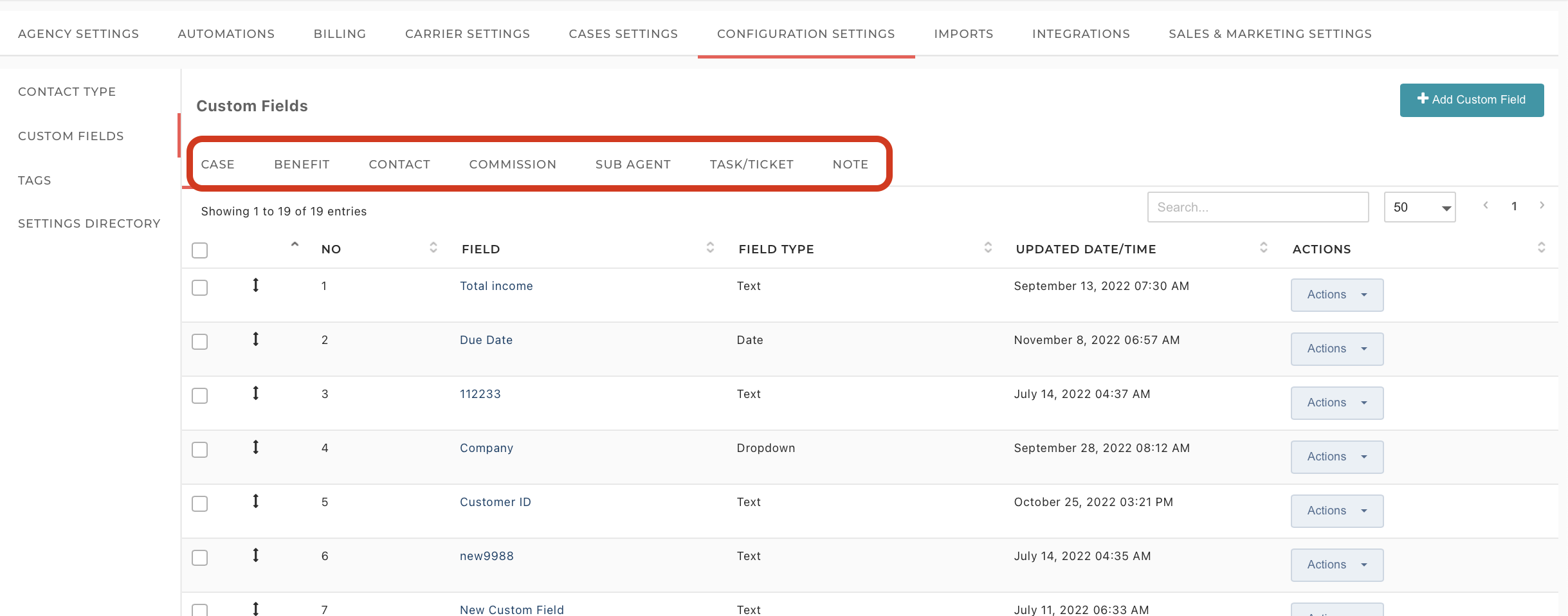
    Custom Fields: NextAgency provides you with a default set of essential fields for Cases, Benefits, Contacts, Commissions, Sub Agents, Tasks/Tickets, and Notes. However, if you find the need to include additional fields, you can create custom fields with the entry type of your choice, such as custom text, date fields, drop-down menus, or percentage values. To initiate the creation of a new custom field, navigate to the relevant section and click on 'Add Custom Field.' This flexibility allows you to tailor your data collection to meet your specific agency needs.


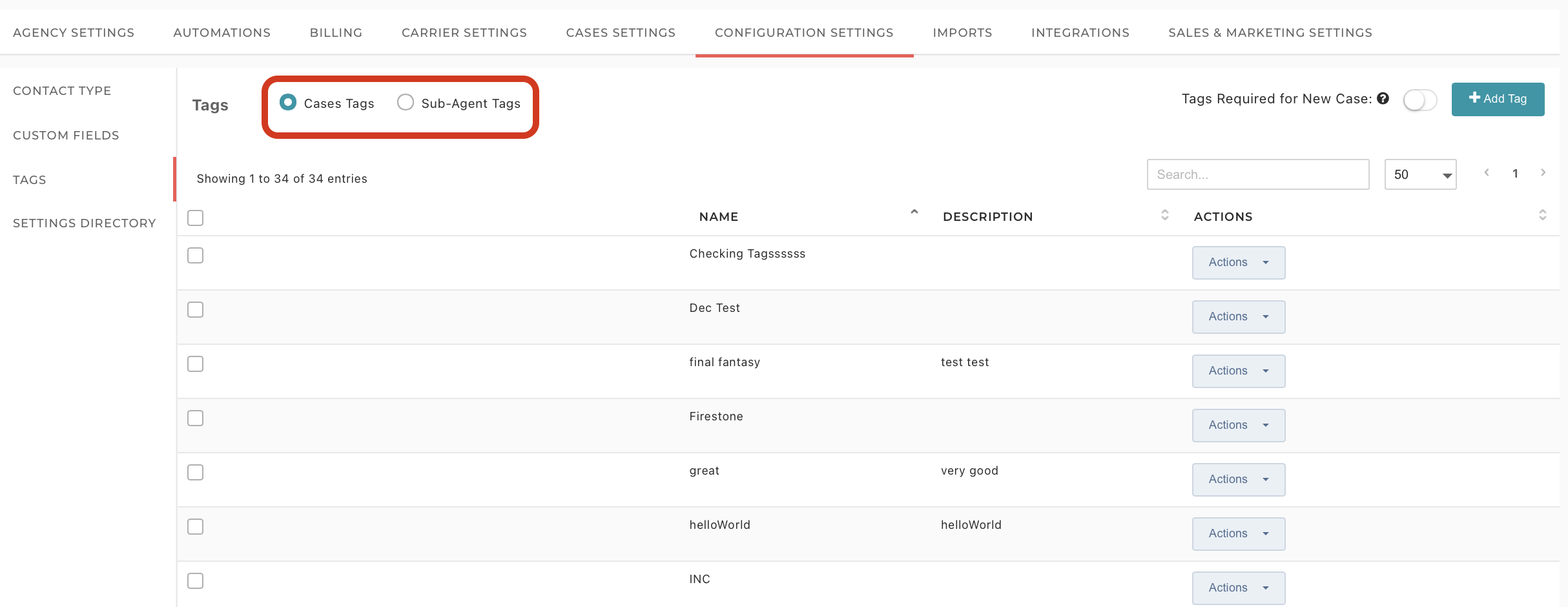
    Tags: Tags provide a powerful way to search and filter for specific information that you're seeking. They can serve as filters on the Cases/Policies and Contacts pages, as well as within Reports. Within your portal, you have the capability to create and assign tags to Cases, Contacts, and Sub Agents. This tagging system enhances your ability to organize and retrieve relevant data efficiently.


    Imports
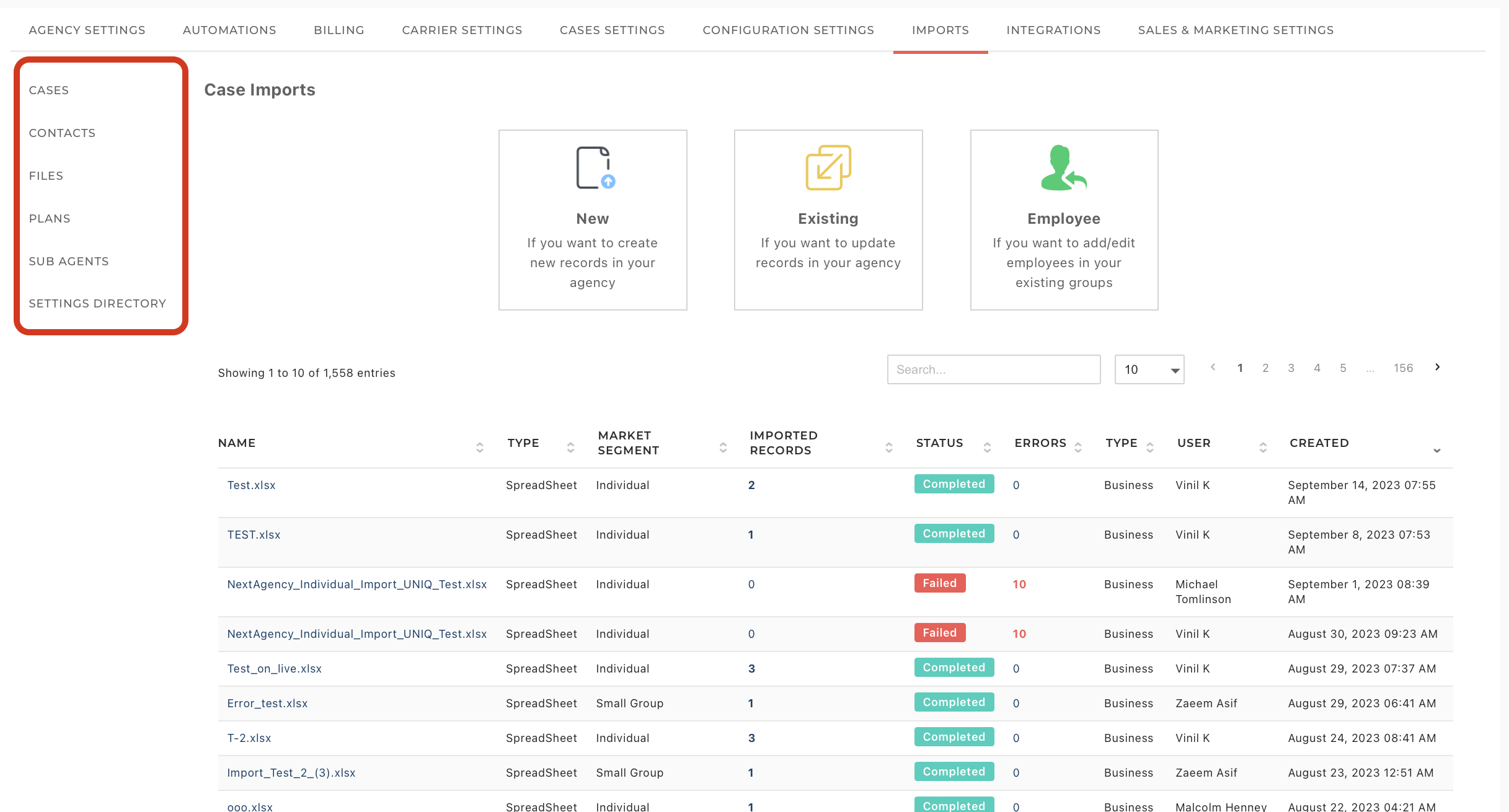


    This is the central location where you can import all your agency information related to Cases, Contacts, Files, Plans, and Sub Agents. It serves as a comprehensive data import hub, streamlining the process of bringing in essential information and ensuring that your system is up-to-date and organized.

    Integrations
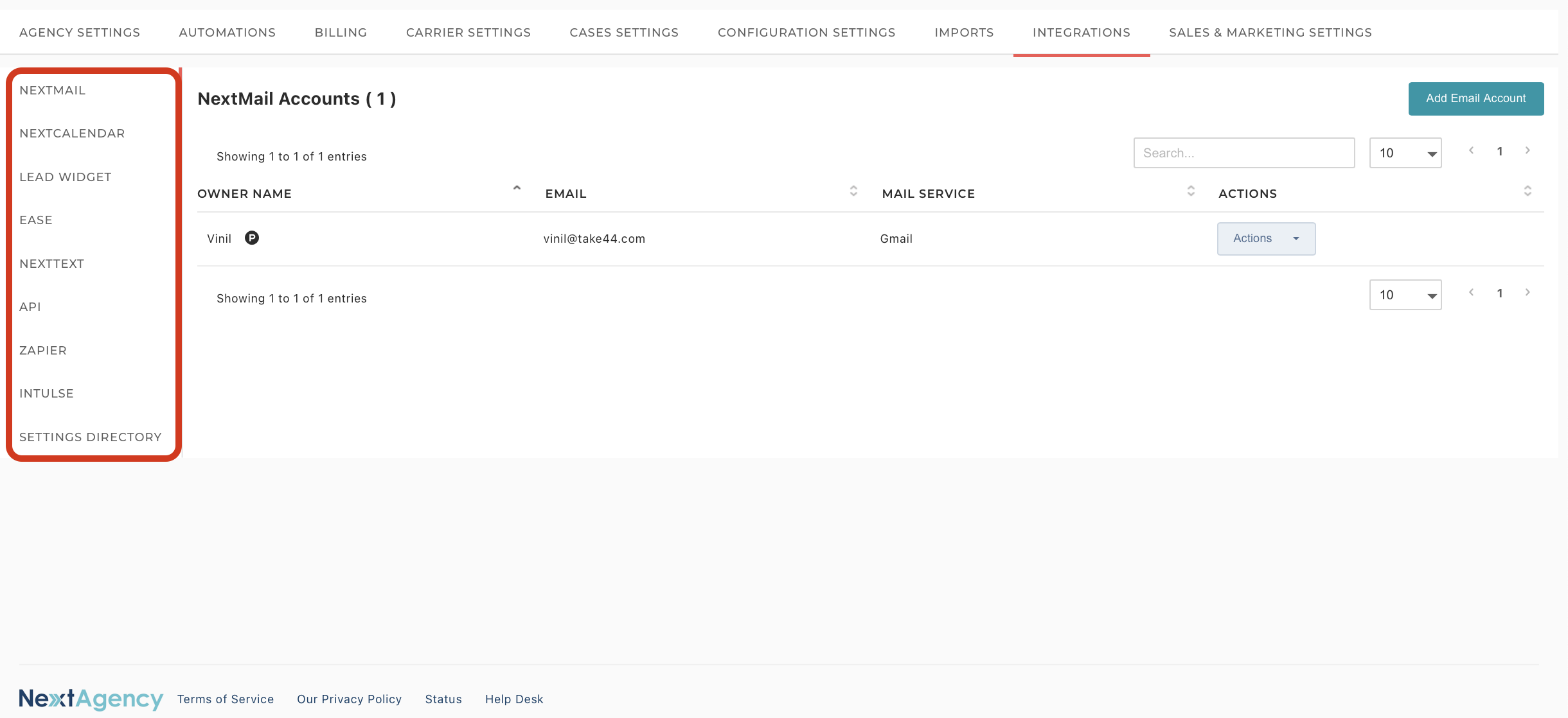


    The Integrations section provides you with the capability to establish connections with other software applications seamlessly. Here, you can link various services, including your email provider (NextMail and NextCalendar), Lead widgets, Ease, NextText, APIs, Zapier, and Intulse accounts. This integration capability enhances your system's functionality by enabling data exchange and automation with external tools and platforms, making your workflow more efficient and productive.

    NextMail/NextCalendar: You have the option to seamlessly incorporate your email system into NextAgency, allowing you to send and receive emails directly within the NextAgency platform. To initiate the setup process, simply click on 'Add Email Account.' This integration streamlines your email communication, making it more convenient and efficient to manage within NextAgency.

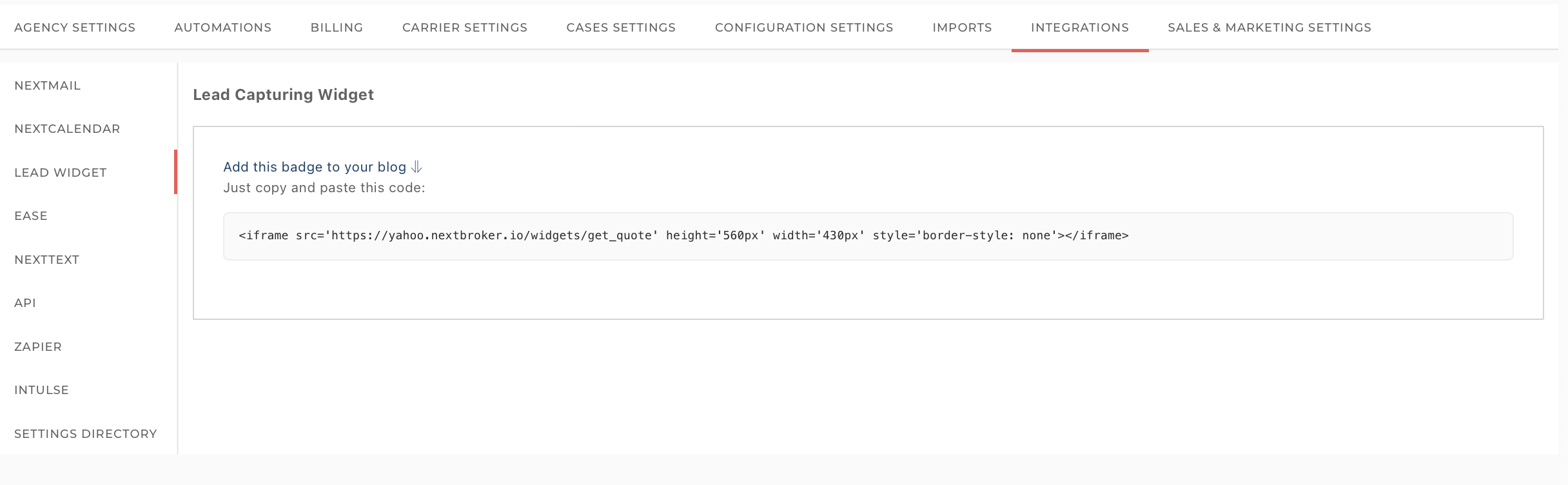
    Lead Widget: You can generate a lead capturing widget by utilizing the code provided by NextAgency. This widget is a valuable tool that can be embedded into your website or other online platforms to capture and manage leads effectively. It enables seamless lead generation and integration with your NextAgency system, ensuring a smooth flow of prospective client information into your agency's workflow.


    Ease: From this page, you can establish a connection and synchronize your Ease account with NextAgency. This synchronization ensures that all the information residing in your Ease account seamlessly integrates with NextAgency. This integration offers you the peace of mind that your data remains up-to-date and consistent across both platforms, streamlining your workflow and enhancing data accuracy and accessibility.


    NextText: This feature allows you to purchase and utilize a phone number for both sending and receiving text messages within NextAgency. It proves to be exceptionally convenient when you need to send important updates or messages to your clients.

    API(Application programming interface): You have the capability to seamlessly integrate third-party APIs directly from this page. This integration enables the exchange of data and functionalities between NextAgency and external software systems or platforms, expanding the capabilities and functionality of your NextAgency system. By connecting with APIs, you can enhance and extend the reach of your agency's operations, streamlining processes and accessing valuable resources from external sources.

    Zapier: On this page, you will find the Zapier integration key, a crucial component required to enable Zapier Integrations. This integration key acts as the bridge between NextAgency and Zapier, allowing you to automate various tasks and data transfers between your NextAgency system and other applications or services supported by Zapier. It simplifies workflow automation and data synchronization, enhancing your overall efficiency and productivity.

    Intulse: You can establish a connection between Intulse and NextAgency directly from this page. This integration with Intulse provides you with advanced telecommunications capabilities within NextAgency, facilitating seamless communication and information sharing. To access further information regarding the Intulse integration, please refer to this page.

    Sales and Marketing Settings
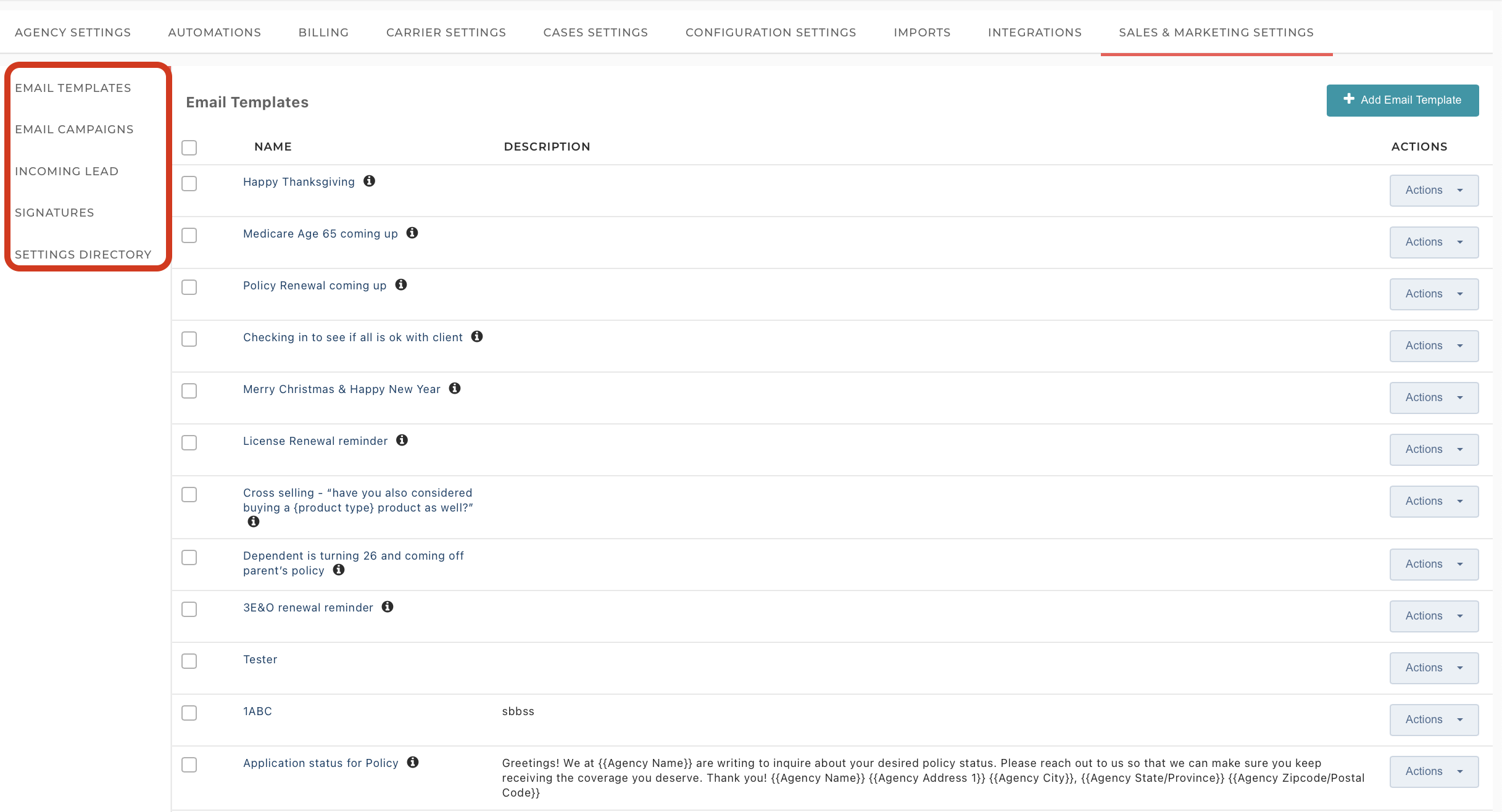


    Step into the Sales and Marketing Settings, your hub for shaping the success of your sales and marketing efforts. Here, you have the power to craft compelling email templates that resonate with your audience, orchestrate dynamic email campaigns for engagement, efficiently manage incoming leads, and leave a memorable mark with personalized email signatures. These settings are the key to optimizing your sales and marketing strategies, enabling you to forge meaningful connections, nurture leads, and project a professional image in every interaction.


    Email Templates: Email Templates offer a valuable time-saving feature. By creating an email template, you can streamline your communication efforts. These templates can be utilized both for individual email correspondence and seamlessly integrated into your email campaigns. This efficiency not only saves you time but also ensures consistency and professionalism in your email communications.

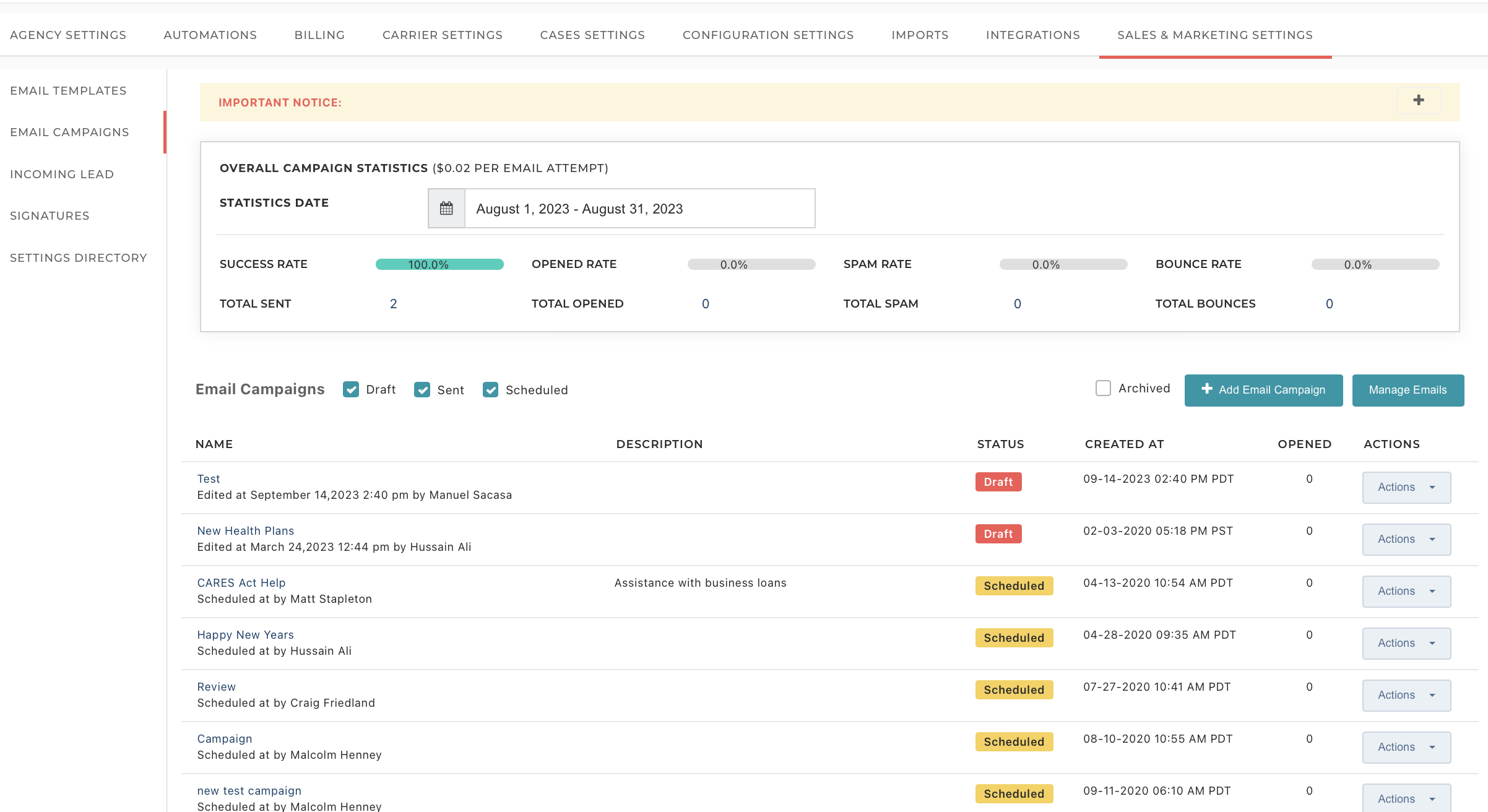
    Email Campaigns: This section allows you to easily add and manage your email campaigns. Additionally, you can access detailed statistics related to your email campaigns directly from this page. To initiate a new email campaign, just click on 'Add Email Campaign.' This streamlined approach simplifies the process of planning, executing, and analyzing the performance of your email campaigns, enhancing your email marketing effectiveness.


    Incoming Lead:
     With this feature, you can effortlessly capture incoming leads originating from your website. These leads seamlessly integrate into NextAgency, and you can conveniently access them within this section. This streamlined process ensures that potential opportunities are efficiently managed and tracked, allowing you to stay responsive and capitalize on potential business prospects.

    Signatures: Elevate your email communications in NextAgency by incorporating custom signatures. These personalized signatures add a professional touch to your emails, making your correspondence more polished and distinctive. Tailor your signature to reflect your identity and convey important contact information effortlessly.


    If you have any questions or need further assistance, please don't hesitate to reach out to our support team. We are more than happy to help and provide any clarifications you may require.

    Need more help? Please contact our support team.

  • The NextAgency settings module enables you to set preferences, create workflows and checklists, customize your NextAgency experience and much more. To help you find settings more quickly, we present the attached directory. This PDF has two pages. The first sorts the settings alphabetically; the second by the tab in the Settings module.


    Need more help? Please contact our support team.

  • From the Library tab in the navigation bar, you can access a library of all uploaded files and documents that are relevant to your agency.


    NextBroker_Overview_27.png


    Uploading Files

    To upload an external file from your computer:

    1. In the upper-left corner of the Agency Library page, click Add Files > From Desktop.

            NextBroker_Files_01.png

    1. In the dialog that opens, click Select Files and choose one or several files that you want to add to the library or just drag and drop the files to the specified area.

            NextBroker_Files_02.png

    1. Click Upload.

            NextBroker_Files_03.png

    1. Wait until the progress bar is complete, and then click Close. The file(s) will appear on the top of the list.

            NextBroker_Files_04.png

    To add an internal file from NextAgency:

    1. Under the File Library header, click Add Files > From NextAgency.
    2. In the dialog that opens, click From NextAgency.

            NextBroker_Files_05.png

    1. In the pane on the left, choose one or several files that you want to add to the library. They will appear in the pane on the right, under Selected Files.

            NextBroker_Files_06.png

    1. When ready, click Add.
    2. Click Save. The file(s) will appear on the top of the list.


    Creating Folders

    By default, the files are added to the main folder. However, you can create your own subfolders to organize the files:

    1. In the upper-left corner of the Agency Library page, click Create Folder.

            NextBroker_Files_07.png

    1. In the dialog that opens, enter the name of the subfolder.
    2. Click Create. The folder will appear at the top of the list.

            NextBroker_Files_08.png

    1. To add files to the folder, just click its name in the list, and then click Add Files.


    File and Folder Actions

    The following actions are available for files and folders:

    • Move Up/Down: You can arrange the files and folders the way you'd like by using the Move Up and Move Down menu items.
    • Share: To share a folder with all users in your agency, click Actions > Share, and then confirm the action by clicking Yes.

            NextBroker_Files_09.png

    • Edit/Rename: To rename a file or folder, click Actions > Edit, and then enter a new name for the folder or file in the dialog that appears.
    • Download: This action is available only for files. Click Actions > Download to save a file to your computer. To download multiple files as a ZIP archive, select those files, click the Multiple Actions button that appears after the selection, and then choose Download.

            NextBroker_Files_10.png


    • Create Link: This action is available only for files. NextAgency makes it possible to generate shareable file links for others to click and download from. 
      • Click Actions > Create Link.
      • In the dialog that opens, click Create a link.
      • NextBroker_Files_11.png
      • Click Copy link.
      • NextBroker_Files_12.png
      • To access all links, click View Public Links.

                      NextBroker_Files_13.png


    To search for a specific file, type its name or prefix in the search field above the files list, and then press Enter.

    NextBroker_Files_14.png

    You can also move files between folders. You can either drag a file record to the folder or select one or several files, click the Multiple Actions button that appears after the selection, and then choose Move. 

    NextBroker_Files_14.png

    In the window that appears, select the folder where you are going to move the file(s) and click Move.

     NextBroker_Files_16.png

    You can also place the folders inside other folders by simply clicking and dragging one folder into another folder.

    Need more help? Please contact our support team.

  • To open the Carrier settings in NextAgency, click Settings in the navigation bar, and then click the Carrier Settings tab.


    Now let's explore each subtab of Carrier settings.


    Credentials:

    On this page, you can manage the carrier credentials, i.e. login information about the broker or agent, which is stored in NextAgency. You can also add your carrier login information for all carriers that have been added to your agency portal.


    You can do the following:

    • Add new credentials.

            NextBroker_Admin_12.png

    • Filter the credentials according to state or user.
    • Preview information about the credentials.
    • Edit information about the credentials.
    • Delete information about the credentials.

    Product Type:

    You can use this page to manage Product Types, allowing you to add, view, or edit them. To create a new Product Type, just click on the 'Add Product Type' button.


    Settings Directory:

    The NextAgency settings module enables you to set preferences, create workflows and checklists, customize your NextAgency experience, and much more. On August 15th we reorganized this module to make it more organized and intuitive. We renamed some sections and added a few, too. We moved some tools from one section to another where appropriate. Our aim in all this was to make the settings module even easier to use.

    To help you find settings quickly, we present the attached directory. This PDF has three pages. The first sorts the settings alphabetically. The second page sorts the settings by where they were. The third by where they are now.


    Selecting this tab will direct you to the Settings Directory page. 


    Need more help? Please contact our support team.

  • In NextAgency, you can organize your prospect and client cases by using tags. To manage tags, follow these steps:

    1. In the upper-right corner of any NextAgency page, click your profile icon and choose Settings.
    2. On the Settings page that opens, go to the Configuration Settings tab.
    3. Go to the Tags subtab.

    On the Tags page, you can see a list of all tags that have been created in NextAgency, with their names, descriptions, and available actions. 

    Adding a Tag

    To add a new tag, follow these steps:

    1. In the upper-right corner of the page, click Add Tag.
    2. On the Add New Tag page that opens, enter a name and description of the tag.
    3. Click Save.

    Managing Tags

    The following tag management options are available in the tags list:

    • Tags required for new case: Set this slider in the upper-right corner of the page to either Yes or No in order to specify whether you would like to make tags mandatory for each new prospect/client case.

            NextBroker_Tags_02.png

    • Editing the tags: Click Actions > Edit.

             NextBroker_Workflows_03.png

    • Assigning the tags: Click Actions > Assign to Case(s). In the popup that opens, select the prospect or client case(s) to which you are going to assign the tag, and then click Save.

            NextBroker_Workflows_04.png

            NextBroker_Tags_03.png

    • Deleting the tags: Click Actions > Delete.

             NextBroker_Workflows_06.png

    Viewing the Assigned Tags

    You can view the assigned tags at the bottom of the Summary page of the Prospect/Client card under Tags. From here you can also open the Manage Tags page and assign more tags.

    NextBroker_Tags_04.png

    Filtering the Cases by Tags

    You can also use tags in quick filters to populate results in your CRM based on a certain tag. To do it, follow these steps:

    1. In the upper-right corner of the home page, expand the Quick Filters pane.
    2. Expand the Details pane.
    3. Click the Tags field and select the required tag(s) from the dropdown.

    As a result, the list will show only the cases that have the specified tags assigned to them.

    NextBroker_Tags_06.png

    Need more help? Please contact our support team.

  • In NextAgency, you can add custom fields for Cases, Benefits, Contacts, Commissions, sub-agents, Tasks/Tickets, and Notes. To add a custom field, follow these steps:

    1. In the upper-right corner of any NextAgency page, click your profile icon and choose Settings.
    2. On the Settings page that opens, go to the Configuration Settings tab.
    3. Go to the Custom Fields sub-tab on the left.


    On the Custom Fields page, you can see a list of all custom fields that have been created in NextAgency, with their numbers, labels, and field types. You can also see the other tabs like Benefit, Contact, Commission, Sub Agent, Task/Ticket, and Notes.

    To add a new custom field on any tab, follow these steps:

    1. In the upper-right corner of the page, click Add Custom Field.
    2. In the Add Custom Field wizard that opens, enter the name of the field label, i.e. the name of the field that will be shown in the user interface, and then click Next.

     NextBroker_CarrierCredentials_04.png

    1. Select the format of the custom field and click Next.


    4. Assignment Options:

    For case custom fields, use the drop-down menus to select the relevant Market Segment(s) and Product Type(s). If none are selected, the custom field will automatically apply to all Market Segments. The custom fields will appear on the case record summary page based on the selected Market Segment(s) and the Product Type(s) associated with the case record. Once you've made your selections, click 'Save. '


    Viewing the Custom Fields

    You can find the custom fields on the Summary page in the Custom Fields section. Click the gear icon to select or deselect the custom fields you want to view. Click Select All to view all the custom fields.


    Filtering the Cases by Custom Fields

    You can also use custom fields in quick filters to populate results in your CRM based on a certain custom field. To do it, follow these steps:

    1. In the upper-right corner of the home page, expand the Quick Filters pane.
    2. Expand the Custom pane.
    3. Specify the data in the custom field(s) to filter the results.
    4. As a result, the list will show only the cases that have the data which you have specified in the custom field(s).

      NextBroker_CarrierCredentials_07.png

    Need more help? Please contact our support team.

Resources

Help Desk

The NextAgency Blog

Company

About

Contact Us

Capterra G2

Privacy            Copyright 2025 Take 44, Inc.            Terms & Conditions